
Most Tesla owners don’t think about Supercharger availability until their battery hits 20% — and that’s exactly the wrong time to start figuring it out. Your car’s navigation, the Tesla app, and third-party platforms like PlugShare all promise live stall data, but they don’t all deliver it equally. One pulls directly from Tesla’s official feed in real time, another relies on strangers reporting back, and the difference between them could leave you stranded. Knowing which method to trust changes everything.
How Do You Check Live Tesla Supercharger Stall Availability?
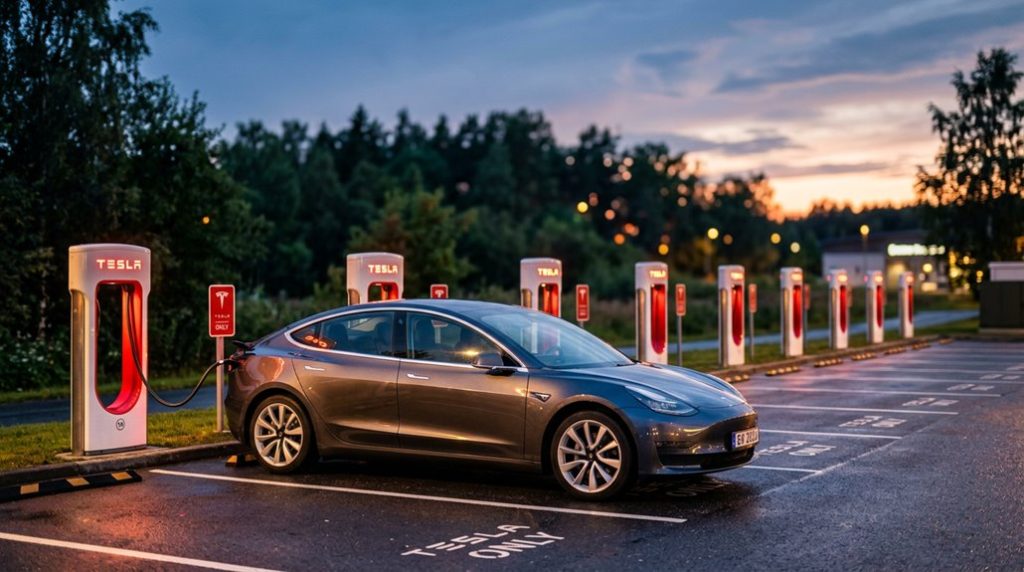
When you’re planning a road trip or just running low on range, the fastest way to check live Supercharger stall availability is directly through your Tesla’s in-car route guidance system. Select any Supercharger on the in car display, and you’ll see a real-time count of open versus occupied stalls — no third-party app required.
Trip planning makes this even more powerful. Once you set a destination, Tesla’s routing automatically routes you through appropriate Superchargers and surfaces live stall data, charging rates, and even battery pre-conditioning status for each stop. That’s granular, situational information baked directly into your workflow. Enabling route guidance also triggers battery preconditioning, which warms the pack before arrival so you reach peak charging rates sooner rather than waiting for the battery to warm up at the stall.
For pre-departure research, tesla.com/findus and tesla.com/trips give you official network visibility before you even touch the steering wheel. Third-party tools like PlugShare and Supercharge.info are useful for detection, but they’re not Tesla’s live-stall source — and that distinction matters when every stall counts. At select stations, a 3D Site Map renders every stall’s real-time color-coded status — Available, Occupied, or Down — directly in the vehicle navigation display.
Does Google Maps Show Real-Time Tesla Charger Data?
If you’d rather skip the Tesla app entirely, Google Maps now pulls live Tesla Supercharger availability data directly into its place listings, showing you both the total stall count and how many are open at that moment.
The integration mirrors what Tesla’s own in-car routing displays, so you’re getting real-time occupancy figures rather than static station info pulled from some outdated database. Tesla’s Supercharger network spans 45,000+ stations globally, making accurate real-time data especially valuable when planning stops along busy highway corridors.
Keep in mind, though, that Google Maps data can occasionally lag behind Tesla’s native feed, meaning the numbers you see won’t always match the Tesla app down to the last stall. This visibility is especially useful for non-Tesla EV owners, who previously lacked the in-vehicle routing and app access that Tesla drivers have long relied on.
Google Maps Integration Details
Google Maps now shows live Tesla Supercharger availability directly inside its standard map listings, pulling real-time stall counts and occupancy data straight from Tesla’s own data feed. This Maps integration means you’re seeing actual open stalls without opening a separate app.
| Feature | Detail |
|---|---|
| Data Source | Tesla’s live feed |
| Information Shown | Total and open stall counts |
| Access Method | Standard Maps search |
| Tesla availability scope | Tesla + Electrify America (~40,000 DC fast chargers) |
Non-Tesla drivers benefit here too, particularly Android users who previously had no clean path to Tesla availability data. One honest caveat: Maps doesn’t clearly distinguish stalls restricted to Tesla vehicles from open-access stalls, so verify eligibility before committing to a stop. With over 130,000 chargers available across the United States, the odds of finding a nearby backup option remain high even when your preferred stop is fully occupied. If you find yourself blocked by site security when trying to access charger availability through certain platforms, emailing the site owner with your Cloudflare Ray ID and IP address is the recommended path to resolution.
Stall Availability Visibility
So now that you know Maps pulls live Tesla data, the obvious next question is: what exactly does that live data look like, and how reliable is it?
Google Maps displays stall availability in formats like “15/16” or “2/12,” meaning available stalls versus total stalls — effectively digital stall signage without the physical sign. That’s genuinely useful. However, don’t treat it like realtime alerts with millisecond precision. Google’s feed can lag behind the Tesla app, so figures may differ slightly between platforms. Think of it as directional intelligence rather than a guaranteed snapshot.
If you’re routing a long-distance trip, seeing “2/12” tells you enough to reconsider that stop. For exact occupancy certainty at arrival, cross-reference with the Tesla app before committing to a detour. The Supercharger V4 network is expanding globally, which means more total stalls at many locations and a better chance of finding availability without rerouting. Apple Maps is also worth checking, as its interface has been described as clearer in presenting live Supercharger data.
What’s the Speed Difference Between V2, V3, and V4 Superchargers?
Not all Superchargers are created equal, and the version you plug into has a direct impact on how fast your battery fills up.
V2 stalls top out at 150 kW (with older units capping at 120 kW), V3 pushes that ceiling to 250 kW per vehicle, and V4 raises it further to 325 kW in North America — roughly a 30% jump over V3’s peak.
That said, peak kilowatts are just the headline number; your actual session speed depends on battery temperature, state of charge, and whether your specific Tesla can even accept that much power in the first place. It’s also worth noting that hardware limitations on older vehicles can restrict which software features and capabilities are available to you beyond just charging speed.
Peak Power Per Version
Charging speed separates these three generations more decisively than most owners expect. V2 stalls peak around 120–150 kW, sharing power between paired stalls and running air-cooled cables that limit sustained output.
V3 jumps to 250 kW per stall with dedicated power delivery and liquid-cooled cables that manage stall thermal loads far better under extended sessions. V4 matches V3‘s 250 kW in many current installations, though newer configurations push toward 325 kW.
The real V4 advantage sits at the cabinet level—up to 1.2 MW distributed across multiple stalls—plus meaningful voltage headroom supporting both 400 V and 800 V vehicles. Your actual charge rate still depends on your vehicle’s onboard curve, but the hardware ceiling determines what’s even possible. Tesla’s broader electrical engineering direction is reflected in vehicles like the Cybertruck, which uses a 48-volt low-voltage architecture that delivers the same power at one-quarter the current draw compared to conventional 12V systems.
Charging Speed Comparison
Speed gaps between Supercharger generations are measurable, consistent, and genuinely matter for trip planning.
V2 stations typically bring you from 0 to 80% in 30 to 60 minutes. V3 cuts that window to roughly 20 to 30 minutes (10 to 80%), thanks to liquid-cooled cables and smarter thermal management during sustained sessions.
V4 pushes further, adding up to 200 miles in approximately 15 minutes under favorable conditions.
Here’s the catch: your vehicle’s battery chemistry and acceptance rate set the real ceiling, not the charger’s output. Every generation tapers speed after roughly 60% state of charge. So your fastest charging always happens early.
Before a long trip, preconditioning your battery while still plugged in at home draws thermal energy from the grid rather than the pack, so you arrive at the Supercharger with a warmer, more receptive battery that charges faster from the start.
Charge only to what the next leg requires, and you’ll spend far less time standing in a parking lot wondering why you didn’t plan better.
A Tesla charger that’s left hanging on the floor or coiled in a mess is more likely to wear out, fail when you need it, or turn a simple charging routine into frustration over time. A Tesla Charging Cable Organizer & Wall Hook Mount keeps everything neatly stored and ready to use, so your home charging setup stays reliable whenever charger availability outside becomes unpredictable.
How to Set the Right Charge Limit for Your Tesla’s Battery Type
Before you drag that charge limit slider anywhere, you need to know what battery chemistry is sitting under your Tesla’s floor — because the right daily target depends entirely on that answer. Check it under Controls > Software > Additional Vehicle Information. Proper charging etiquette starts with identifying your battery chemistry first, then acting accordingly.
Nickel-based pack? Set your daily limit to 80%. That ceiling reduces long-term electrochemical stress, preserving capacity over thousands of cycles. Save 100% charges for road trips, and charge to that level shortly before departure — not the night before.
LFP pack (common in 2024 Model 3 RWD trims)? Charge to 100% daily without guilt. Tesla explicitly recommends it. LFP chemistry handles full charges without the degradation penalty that plagues nickel-based cells. Hit 100% at least once weekly to keep the battery management system accurately calibrated.
Adjust your limit via the Charging screen or Tesla app while plugged in. If you’re unsure which generation of hardware your vehicle runs, the same Additional Vehicle Information screen that reveals battery chemistry also displays your hardware label version — HW2.5, HW3, or HW4 — which can matter when cross-referencing configuration-specific documentation.
How Idle Fees and Phantom Drain Affect Your Supercharger Stop
Setting your charge limit correctly is half the battle — the other half is knowing what happens when your Tesla finishes charging and you’re still browsing the vending machine selection. Idle fees kick in after a five-minute grace period, and phantom drain quietly chips away at your battery while you wait.
| Condition | Fee Rate | Trigger Point |
|---|---|---|
| Station at 50% capacity | ~$0.50/min | Charge complete |
| Station at 100% capacity | ~$1.00/min | Charge complete |
| Congestion threshold reached | Up to $1.00/min | Battery at 80% |
Phantom drain compounds this problem. Sentry Mode, cabin conditioning, and thermal management continuously pull energy while your Tesla sits connected, meaning your session runs longer than planned. A longer session pushes you closer to idle fee territory. Watch your Tesla app notifications — they’ll alert you when charging finishes so you can unplug before costs accumulate. Using non-certified chargers can introduce additional inefficiencies and even trigger warranty scrutiny, making Tesla’s own Supercharger network the safer and more cost-predictable choice for managing session length and fees.
How to Use PlugShare and Supercharge.info to Fill In the Gaps
Tesla’s in-car routing and app give you the clearest real-time image of Supercharger availability, but they don’t always tell the whole story — a stall count of “2 available” doesn’t tell you whether those stalls are derated, blocked by construction cones, or positioned next to a diesel truck idling in the adjacent spot.
That’s where PlugShare and Supercharge.info close the gap. Both platforms use community moderation and user-submitted data to surface what Tesla’s official tools omit.
Use each platform deliberately:
- PlugShare check-ins reveal real-time congestion through recent user comments
- PlugShare photos expose blocked stalls, signage issues, or access problems
- PlugShare network filtering isolates Tesla Superchargers from third-party DC fast chargers
- Supercharge.info’s historical timeline confirms whether a site is newly opened, partially commissioned, or mid-expansion
- Cross-referencing both platforms catches discrepancies between official stall counts and actual usable capacity
Tesla’s in-car navigation also surfaces live traffic visualization on supported hardware, but this feature requires an active Premium Connectivity subscription and focuses on road conditions rather than charger-level stall status.
Together, they convert incomplete stall data into a genuinely actionable pre-trip decision.
A charger being “available” doesn’t always mean it’s usable—tight parking angles, blocked access, or just a few extra feet can turn a working station into a missed opportunity. A Portable EV Charging Extension Cable gives you the reach to actually use the charger in front of you, instead of driving away and hoping the next one works out better.
Frequently Asked Questions
Can Non-Tesla EVS Check Supercharger Availability Using the Same Live Tools?
Yes, you can check Supercharger availability using the Tesla app, cross-network apps like MyChevrolet, and third-party converters. Confirm station compatibility beforehand, as access varies by vehicle type and location.
Does Tesla Notify You if a Supercharger Station Goes Offline Unexpectedly?
Tesla doesn’t send outage alerts when a Supercharger goes dark unexpectedly. Instead, your route guidance silently reroutes you. Check your notification settings — the app reflects station changes, but dedicated outage alerts aren’t a guaranteed feature.
How Accurate Is Live Supercharger Availability Data Compared to Actual Stall Status?
Live Supercharger availability is mostly accurate, but real-time discrepancies and data latency mean you’re seeing a near-current snapshot, not a guarantee. Stalls can change status faster than the display refreshes, so treat it as a strong estimate.
Can You Reserve a Specific Supercharger Stall Before Arriving at the Station?
Like calling shotgun on an empty seat, you can’t do remote booking for a specific stall. Tesla’s first-come, first-served stall etiquette means you claim your spot only after you’ve arrived.
Does Checking Charger Availability Drain Your Tesla’s 12V Battery Over Time?
Checking charger availability won’t cause meaningful battery wear or parasitic drain on your 12V. The real culprit is keeping your car unnecessarily awake through repeated app refreshes or prolonged screen interaction.