
Tesla calls it “Autopilot.” You call it peace of mind. But what if one of those labels is dangerously wrong? Behind every self-steering highway mile is a web of cameras, neural nets, and rapid-fire processing—and a $8,000 gap that most owners never fully understand until it’s too late. The difference between what Tesla gives you for free and what it charges a premium for isn’t just features. It’s a distinction that could redefine how you drive—and how safe you actually are.
What Is Tesla Autopilot and How Does It Actually Work?
Tesla Autopilot is frequently misunderstood as a self-driving system, but it’s actually a Level 2 driver-assistance system under the SAE’s six-tier automation architectonics. That classification means the car handles steering and speed simultaneously, yet you remain legally and physically responsible for everything happening on the road.
Here’s how it works: cameras surrounding the vehicle feed raw visual data into onboard neural networks, which identify lane markings, vehicles, pedestrians, and road limits in real time. Those networks then calculate steering, braking, and acceleration outputs continuously.
Camera limitations matter here—poor visibility, faded markings, or obstructed lenses degrade system performance meaningfully. Autopilot isn’t piloting from memorized maps; it’s reacting to what it sees right now.
Attention requirements aren’t optional formalities either—Tesla’s own guidance treats driver supervision as non-negotiable, always. The system also relies on ultrasonic sensors and radar alongside cameras to detect potential hazards and apply emergency braking or evasive steering when necessary.
Basic Autopilot vs. Enhanced Autopilot vs. FSD: The Real Differences
Three tiers, three very different skill sets—and confusing them costs you either money or capability.
Basic Autopilot handles speed control and lane centering only; no lane changes, no destination logic.
Basic Autopilot does one thing: keep your speed steady and your lane centered—nothing more.
Enhanced Autopilot adds highway route guidance, automatic lane changes, Autopark, and Summon—useful features, but strictly highway-and-parking focused.
FSD Supervised extends into city streets, responding to traffic lights and stop signs under your constant supervision.
Feature comparisons matter here because hardware limitations on older vehicles can restrict what software actually delivers.
User expectations frequently outpace reality—FSD’s name implies more autonomy than it legally provides.
The legal implications are real: all three tiers require attentive, hands-on supervision regardless of capability level.
All three tiers are classified as SAE Level 2 automation, meaning the driver remains fully responsible for monitoring the road and intervening at any moment.
Match your purchase to your actual driving needs, not the most optimistic interpretation of a feature name.
Traffic-Aware Cruise Control: Speed, Following Distance, and Behavior
Traffic-Aware Cruise Control (TACC) activates between 18–85 mph (30–135 km/h), though it’ll engage at lower speeds if a vehicle sits at least 5 feet (1.5 meters) ahead — useful in slow-rolling traffic where speed thresholds would otherwise block activation.
You control your set speed through the right scroll wheel, and you can configure it against the detected speed limit using either a fixed offset (a flat mph/km/h addition) or a percentage offset (a proportional adjustment above or below posted limits), giving you precise, repeatable speed behavior across different road types.
On highway interchanges and off-ramps, TACC proactively pulls speed down in 5 mph steps — sometimes as low as 25 mph (40 km/h) — using crowdsourced data from other Teslas that have traversed that exact location, though a quick tap of the accelerator overrides the reduction if you disagree with its judgment. When approaching turns onto different roads, you should disengage cruise control manually, as the system has no awareness of your intent to turn.
Speed and Distance Settings
Most of what makes Traffic-Aware Cruise Control (TACC) usable day-to-day comes down to two variables: how fast it’s trying to go and how much space it leaves between you and the car ahead.
Your set speed is the ceiling — TACC targets it when traffic allows, but backs off when it doesn’t. Roll the right scroll wheel up or down to adjust it incrementally while the system’s active.
For speed offsets, you can configure Fixed or Percentage-based adjustments tied to detected speed limits — Fixed adds a static amount on every road, while Percentage scales with the limit. Following distance settings let you dial in your preferred gap, giving you genuine control over how aggressively TACC closes on slower traffic ahead. Similar driver-assist features like Super Cruise hands-free driving come with critical limitations that can significantly change how and where the system can be used.
Adaptive Traffic Response
Once a lead vehicle enters TACC’s detection range, the system shifts from holding your set speed to actively managing the gap between your bumper and theirs. It reads traffic flow continuously, decelerating smoothly when the car ahead slows and resuming your set speed when the lane clears.
In stop-and-go conditions, TACC brakes to a complete stop and restarts without pedal input. During adaptive merging, activating your turn signal briefly tightens the following gap, letting you slot into faster-moving traffic more naturally.
Curve anticipation adjusts your cruising speed through bends, reducing the speed variance that makes highway tracking feel unstable. Throughout all of this, TACC remains a driver-assistance layer—you’re still responsible for monitoring conditions and intervening when the situation demands it.
Beyond speed and spacing, Tesla’s FSD beta feature can detect traffic lights and stop signs, notifying the driver and slowing the car to a complete stop regardless of light color until the driver confirms it’s safe to proceed.
How Autosteer Keeps Your Tesla Centered in the Lane
Autosteer uses Tesla’s eight-camera vision system to continuously read lane markings, road edges, and surrounding vehicles, feeding that data into onboard neural networks that calculate a target steering path dozens of times per second.
When lane markings aren’t visible (faded paint, snow cover, or tight curves), the system can infer your lane position from a lead vehicle ahead, though that fallback reduces positioning precision and occasionally produces a slight edge bias rather than true centerline alignment.
Regardless of how well Autosteer is performing, you’re legally and physically responsible for the vehicle at all times—your hands should stay near the wheel and your eyes on the road, because the system is explicitly classified by Tesla as a driver assistance feature, not a replacement for an alert driver. As of recent changes, Autosteer has been removed from all Model 3 and Model Y trims as standard equipment, meaning a Full Self-Driving subscription is now required to regain lane-centering functionality.
How Autosteer Works
Tesla’s Autosteer handles the continuous steering work of keeping your car centered in its lane, functioning as the lateral half of Autopilot while Traffic-Aware Cruise Control manages the longitudinal half (speed and following distance). The lane centering logic pulls from multiple inputs simultaneously — lane markings, road edges, detected vehicles, and nearby structures like guardrails.
| Input Source | Primary Role | Fallback Use |
|---|---|---|
| Lane markings | Define lane limits | First priority |
| Road edges | Supplement limit detection | When markings fade |
| Leading vehicle | Path reference | When markings disappear |
| Guardrails | Lateral offset adjustment | Near roadside structures |
| Surrounding traffic | Safe positioning cue | Dense traffic scenarios |
Sensor fusion tradeoffs matter here — no single input is infallible, so Autosteer weights them collectively, which explains why your car occasionally rides slightly off-center rather than splitting the lane mathematically. As of 2023, Autosteer can also automatically shift the car’s position within the lane when a large truck is detected traveling in an adjacent lane, adding a buffer of roughly a foot between the two vehicles.
Required Road Conditions
While Autosteer handles a lot of the heavy lifting on the highway, it doesn’t work in a vacuum — the road itself has to meet certain baseline conditions before the system performs reliably.
Lane visibility is the first requirement: faded, worn, or construction-altered markings reduce tracking accuracy fast. Your cameras are the system’s eyes, so camera maintenance isn’t optional — dirt, rain spray, or fog can blind sensors entirely, disabling features mid-drive.
Roadway suitability matters too; Autosteer performs best on controlled-access highways with consistent lane width and predictable geometry. Sharp curves, lane merges, and abrupt width changes increase steering corrections noticeably.
Sensor limitations are real — respect them, and you’ll get far more reliable performance from the system. Behavior can also vary depending on your vehicle’s model year, hardware generation, and software version, meaning no universal standard applies across all Tesla configurations.
Driver Oversight Responsibilities
Road conditions set the stage, but what happens in the driver’s seat determines whether Autosteer actually works the way it’s supposed to. Autosteer isn’t autonomous—it’s a steering assist, and legal responsibility stays entirely with you. Driver monitoring exists precisely because the system can disengage without warning when road geometry or visibility degrades.
You’re expected to maintain sufficient steering torque to confirm attention, keep eyes scanning traffic, and monitor lane position continuously. Tesla’s touchscreen prompts aren’t suggestions; they’re escalating warnings that precede system shutdown.
Think of Autosteer as a capable co-pilot that still needs a licensed human in command. The moment you treat it otherwise, you’ve misunderstood both the technology and your legal responsibility behind the wheel. Collective cloud data uploaded from all vehicles is what refines Autosteer’s behavior over time, not adjustments learned from your individual driving style.
Navigate on Autopilot: Highway Routing From On-Ramp to Off-Ramp
Steer on Autopilot (NoA) does what basic Autosteer can’t: it takes your active route guidance and uses it to guide the car from highway on-ramp to off-ramp, handling lane positioning, exit timing, and interchange splits along the way. It requires a live routing route containing at least one controlled-access highway segment to activate.
Once engaged, NoA handles merge negotiation onto the highway, then monitors your route continuously for predictive exits, automatically signaling and repositioning the car before your exit arrives. It’ll also perform speed-based lane changes to reduce travel time.
When you leave a supported highway segment, the system drops back to standard Autosteer, announcing the handoff with a chime and updated lane-line display. Navigate on Autopilot is part of Tesla’s Full Self-Driving package, making it an optional capability rather than a standard feature on all vehicles.
Auto Lane Change: When It Triggers and What Controls It
Auto Lane Change won’t activate on a whim — Autosteer must already be running, and you have to engage the turn signal in the direction you want to move before the system will initiate a lateral maneuver.
The target lane’s markings must be visible and continuously confirmed by the camera array, and if the system loses detection of the outside lane marking midway through the change, it cancels the maneuver and returns you to the original lane.
You retain override authority throughout: steering-wheel input can interrupt the sequence, and if the full lane change isn’t completed within 5 seconds, the system aborts automatically — no harm done, but you’ll need to re-signal for another attempt. Auto Lane Change is restricted to highways with dashed adjacent lane markings and will not operate on surface streets.
What Activates Lane Changes
Triggering an automatic lane change on Tesla’s Autopilot system isn’t complicated, but the sequence of conditions that must align before the car actually moves is worth grasping precisely.
First, Autosteer must already be active—Auto Lane Change isn’t a standalone feature you invoke independently. Once Autosteer’s running, engaging the turn signal initiates the process. That’s your primary trigger.
From there, lane detection takes over: the system scans adjacent lane markings to confirm the target lane is both present and available. Signal timing matters here because the car won’t commit until it’s confirmed the lane boundary throughout the maneuver.
If detection drops mid-move, the vehicle returns to the original lane automatically. Think of it as a handshake protocol—your signal requests the change, the sensors approve it. Once the lane change completes and the indicator stops blinking, Autopilot re-engages automatically if Continuous Autopilot is enabled.
Driver Controls and Overrides
Once Autosteer is running and you’ve flicked the turn signal, the system doesn’t just hand everything off—you stay in the loop with several live control inputs that can shape, redirect, or outright cancel what the car is doing.
Steering override works on a torque-detection basis: gentle input guides the maneuver, while firmer input cancels it entirely and returns full control immediately.
Pedal integration means your accelerator stays active throughout—if you’re passing slower traffic, pressing the pedal lets you match your set cruise speed without breaking the automated sequence.
Braking, however, overrides everything and drops you back to manual.
Each lane change requires a fresh signal input; the system won’t chain multiple shifts from a single flick.
Traffic Light and Stop Sign Control Explained
Traffic Light and Stop Sign Control is Tesla’s camera-and-GPS-based intersection management feature, built into Traffic-Aware Cruise Control and Autosteer to detect red lights, stop signs, and even blinking yellow signals before you reach them. Stop line accuracy depends heavily on camera limitations like visibility and road geometry, while intersection timing requires your driver confirmation—a brief accelerator press—before the vehicle proceeds. Detection can reach roughly 600 feet for stop signs under good conditions.
Tesla’s camera-and-GPS system detects red lights and stop signs up to 600 feet away, requiring driver confirmation before proceeding.
- That moment the car smoothly stops itself at a red light feels genuinely impressive
- Realizing it might miss an obscured sign keeps you appropriately alert
- Watching the system improve update-by-update makes you feel part of something progressing
Basic Autopilot excludes this feature entirely—FSD package ownership is mandatory. The feature was introduced in 2020 with the 2020.12.6 software update, marking the first time Tesla delivered on its promise to recognize and respond to traffic lights and stop signs.
Autosteer on City Streets: What FSD Actually Does in Urban Areas
When you engage FSD Supervised on a city street rather than a highway, the system’s job description changes dramatically—instead of holding a lane between painted lines at steady speed, it now has to manage turns, read intersections, reposition across lanes before a left onto a side street, and negotiate with drivers who absolutely didn’t read their DMV handbook. Tesla calls this capability “Autosteer on City Streets,” and it’s available in the U.S. and Canada as part of the full FSD package.
The system follows your route guidance, adjusts speed for posted limits, and reacts to cut-ins. Urban limitations are real, though—imperfect lane markings and sparse map data degrade performance noticeably. Driver supervision isn’t optional wording; it’s a mechanical requirement the system genuinely still needs. In Europe, autosteer on city streets remains unavailable despite FSD being offered there at approximately €7,500.
FSD Is Still SAE Level 2: What That Classification Really Means
Despite the name printed on the purchase button, Full Self-Driving is an SAE Level 2 system—and that single classification carries more practical weight than any feature changelog Tesla has ever pushed over the air.
Marketing clarity matters here because “Full Self-Driving” implies something the SAE taxonomy simply doesn’t support yet. You’re still the driver. The system handles steering and speed simultaneously, but driver responsibility never transfers.
Here’s what Level 2 actually means for you:
- You must monitor the road continuously—no exceptions, no coffee breaks
- You’re legally liable if something goes wrong while FSD is active
- No current Tesla system meets Level 3, where conditional automation genuinely handles the task independently
The name sells. The classification governs. For context on just how far the gap runs, Level 5 vehicles do not exist today and would require complete autonomy in all conditions with no steering wheel whatsoever.
What Tesla Actually Expects You to Do While Autopilot Is On
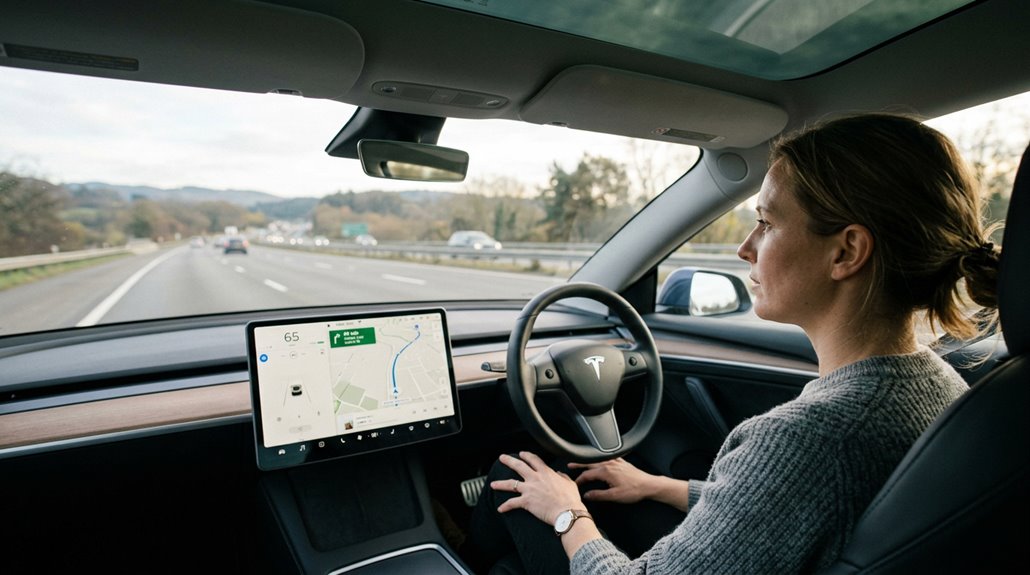
Tesla doesn’t hand the wheel to the car — it hands you a co-pilot that still expects you to fly.
While Autopilot or FSD (Supervised) is active, you’re required to keep your hands on the steering wheel and your eyes scanning the road ahead at all times, because the cabin-mounted driver monitoring camera is actively watching for attentiveness lapses and will escalate warnings if it catches you drifting.
The system can demand immediate manual takeover with zero notice, so treating Autopilot like a hands-free cruise mode isn’t just a misunderstanding — it’s the exact behavior Tesla’s safety protocols are designed to prevent. Tesla is explicit that the driver remains responsible and ultimately in control of the vehicle at all times, even when these systems are active.
Eyes Forward Always
Engaging Autopilot or FSD Supervised doesn’t mean you can mentally clock out and scroll through your phone. Tesla’s cabin-facing camera uses eye tracking to verify your gaze stays road-focused, not ceiling-focused. Driver alertness isn’t optional—it’s structurally built into how the system operates.
Here’s what Tesla actually expects from you:
- Keep your eyes forward, because the cabin camera watches where you’re looking, not just whether your hands are on the wheel
- Stay mentally engaged, since FSD can misread a situation faster than you’d expect
- React immediately when something goes wrong, because the system isn’t designed to handle every edge case alone
That said, Tesla recently adjusted how quickly the system issues inattentiveness nudges after owners reported alerts triggering during routine interactions like adjusting HVAC or touchscreen settings, with Ashok Elluswamy confirming the fix on May 16, 2025.
You’re the supervisor. Tesla’s just doing most of the driving.
Hands on Wheel
Forget the image of white-knuckling the steering wheel while Autopilot silently judges you—that’s not what Tesla’s system actually requires. Hand detection works through steering torque, not a grip sensor. Light wheel pressure that creates slight resistance satisfies the check entirely.
| Action | Satisfies Check? |
|---|---|
| Light one-handed pressure | ✅ Yes |
| Equal pressure both sides (net-zero torque) | ❌ No |
| Pressing a steering-wheel button | ✅ Yes |
Ignore the check long enough, and your instrument cluster starts flashing—then chiming repeatedly. Tesla wants periodic confirmation, not constant contact. Even activating your turn signal counts. The practical rule is simple: occasional, deliberate torque input keeps the system satisfied and keeps you legal. Real-world HW3 owners consistently report driving extended FSD miles without keeping hands firmly on the wheel, contradicting claims that constant hand contact is required.
What Triggers a Driver Attention Warning During Autopilot?
Autopilot doesn’t just trust you’re paying attention—it actively tests that assumption using two parallel systems: steering-wheel torque sensing and cabin-camera gaze tracking. No steering torque detected? Warning. Cabin camera catches your eyes drifting toward your phone? Warning. Both systems run simultaneously, and either one can escalate independently.
Common triggers worth knowing:
- Phone distraction pulls your gaze long enough that the cabin camera flags inattention before you realize it happened
- False alerts occur during straight-line driving when minimal steering input registers as disengagement, even with hands present
- Prolonged screen-gazing at Tesla’s own center display ironically triggers the same warnings as looking away entirely
One 2020 Model 3 study logged 3,858 warnings across 12,000 miles. That’s not occasional—that’s structural.
Accumulating five warnings triggers an FSD suspension, though each warning expires after 3.5 days without additional incidents, resetting the count entirely.
When Autopilot Disengages and How to Safely Take Back Control
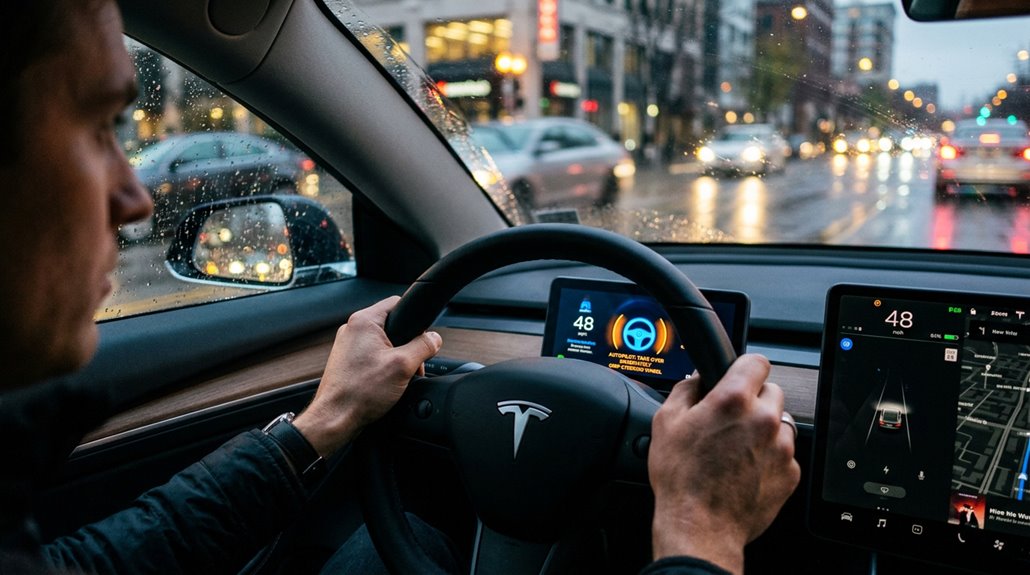
Autopilot disengages through two distinct paths: you trigger it deliberately (brake input, stalk input, or steering override), or the system forces a handoff when its lane-detection confidence drops below operational thresholds.
A MIT study of 19 Tesla owners logging 298 highway disengagements found that 64% were driver-initiated, typically ahead of exits, lane changes, or construction zones, while only five were system-generated takeover requests.
When control reverts, steering and acceleration return to you immediately, so your hands should already be on the wheel before that moment arrives — not half a second after the chime.
The system monitors steering wheel torque rather than simple hand contact, meaning a light or resting grip may not register as sufficient input and can trigger a disengagement sequence if a nag alert goes unanswered.
Common Disengagement Triggers
Grasping why Tesla’s Autopilot and FSD Supervised disengage—and when—turns reactive panic into prepared response. Several trigger categories exist, each rooted in measurable system thresholds.
- Attention thresholds crossed: Ignoring torque and cabin-camera warnings escalates into full disengagement—sometimes a session-wide lockout.
- Visibility limits and camera calibration failures: Faded lane markings, rain, or a misaligned front camera cluster erode confidence scores until the system simply quits.
- Speed caps breached: Exceeding roughly 140 km/h (85 mph) in certain modes forces an immediate handoff—no negotiation.
Construction zones, dawn glare, and novel road geometry compound these triggers fast. When software recalibration fails to correct a physical camera misalignment, only the static optical target alignment procedure can permanently restore accurate lane confidence scores and prevent recurring disengagements. Appreciating each category means you’re already positioned correctly before the steering wheel lights up demanding your attention.
Regaining Control Safely
When Autopilot disengages—whether you triggered it or the system did—your job is the same: take control smoothly, decisively, and without overcorrecting. Your hands should already be positioned on the wheel, because good habits make shifts boring (that’s the goal).
For immediate disengagement, tap the brake pedal, apply moderate steering torque, or flick the Autopilot stalk upward. Controlled braking keeps the vehicle stable during handoff—progressive pressure beats a panic stomp every time.
Sudden large steering inputs at highway speeds create instability, so firm and measured wins. A MIT study analyzing 298 highway disengagement events confirmed that smooth takeover behavior directly correlates with safer handovers.
After control returns, stabilize speed first, confirm lane position second, then reassess surrounding traffic. Order matters. An audible chime and visual instrument-panel indication will typically confirm the moment Autopilot hands control back to you.
Roads Where Autopilot and FSD Will and Will Not Operate
Neither system operates everywhere, and knowing where each one draws the line saves you from white-knuckle surprises on roads Tesla’s neural networks weren’t built to handle.
Knowing where Tesla’s systems fail keeps you in control before the road demands more than the technology can give.
Standard Autopilot thrives on divided highways with consistent lane markings. Rural edge cases—think seasonal lane marking fade after harsh winters—can drop lane-centering confidence markedly.
FSD Supervised extends coverage to city streets, handling traffic lights and stop signs, but it still struggles with construction zones, roundabouts, and low-visibility conditions.
- Dirt roads will leave you completely on your own, no handholding from Tesla’s cameras
- Faded markings after winter snowplowing can cause unexpected disengagements mid-curve
- Complex urban intersections can overwhelm the system, demanding your immediate intervention
Driver supervision remains non-negotiable regardless of road type. SAE Level 2 classification means you are legally and practically responsible for monitoring the vehicle at all times, no matter what the road conditions allow the system to do.
Automatic Emergency Braking: How It Detects and Responds to Threats
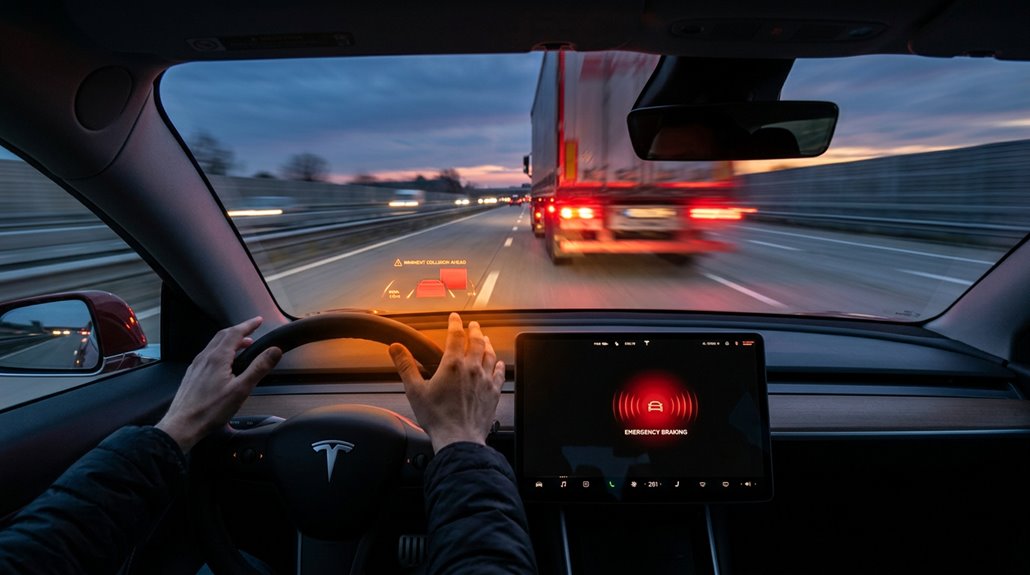
Tesla’s Automatic Emergency Braking (AEB) uses a fusion of camera-based vision processing and onboard neural networks to calculate object distance, closure rate, and collision probability in real time — then applies braking autonomously when impact becomes unavoidable, not merely probable.
The system works across both manual driving and Autopilot operation, covering threats ranging from slower or stationary vehicles ahead to cross-path conflicts like red-light runners cutting through an intersection (a capability Tesla expanded well after its Mobileye-era systems, which handled only forward rear-end scenarios).
You’re still the responsible party here, though — AEB is designed to reduce collision severity by cutting speed, not to replace your attention, and Tesla’s own documentation explicitly frames it as a last-resort intervention within the broader Collision Avoidance Assist stack. In the fatal 2016 Model S crash, a high white side of a box truck produced a radar return resembling an overhead sign, which prevented AEB from activating despite Autopilot being engaged at the time.
How Detection Works
Automatic Emergency Braking doesn’t operate on a single sensor’s opinion — it runs a cross-examination across multiple data streams before committing to any response. Tesla’s sensor fusion approach cross-references camera data against radar returns, filtering out false positives before triggering anything. A shadow on pavement won’t fool it. Neither will a bridge overhead.
What the system actually evaluates:
- Object distance and closure rate — not just whether something’s there, but how fast you’re approaching it
- Ground-plane interruption — a genuine obstacle breaks the expected surface pattern in ways overhead structures don’t
- Radar signature consistency — a real vehicle returns a distinct, repeatable signal that random environmental noise simply can’t replicate
That layered verification is precisely why AEB doesn’t panic unnecessarily. The system has also expanded to handle crossing path vehicles, detecting cars moving perpendicular to the Tesla — such as those running red lights — and responding before a collision can occur.
Threat Response Process
When a genuine threat enters the frame, AEB doesn’t jump straight to maximum braking — it works through a staged response sequence that prioritizes giving you a chance to act first.
Forward Collision Warning fires first, supplying visual alerts, an audible chime, and (on newer vehicles) haptic feedback across a speed window of roughly 3–124 mph. That’s threat prioritization in practice: warn before intervening.
If you steer clear, AEB never activates — Tesla explicitly holds braking back when steering remains a viable escape. Only when avoidance options collapse does staged braking engage, applying force calibrated to your speed and environment.
The goal isn’t guaranteed collision prevention; it’s reducing impact severity. Your touchscreen flashes a warning, brake lights activate automatically, and the pedal drops noticeably underfoot.
Forward collision warning sensitivity is fully adjustable, with settings ranging from off to early, giving drivers direct control over how soon the system begins alerting them to a potential threat ahead.
Driver Supervision Required
No matter how capable AEB gets, it doesn’t absolve you of the wheel — and Tesla is explicit about that. AEB is a last-resort intervention, not a substitute for driver attention. Supervision protocols exist because no sensor array anticipates everything.
You remain legally and physically responsible, always.
- You can’t outsource judgment — AEB reacts; you *prevent*
- Complacency kills — the system’s competence can quietly erode your alertness
- Intervention windows are brutal — milliseconds separate a near-miss from impact
Tesla’s cabin camera actively monitors your engagement, issuing escalating warnings when distraction is detected. Repeated inattention restricts feature access entirely. AEB reduces collision severity; it doesn’t replace the attentiveness that avoids collisions altogether. Treat supervision protocols as non-negotiable, not advisory. Even Tesla’s Full Self-Driving (Supervised) feature explicitly requires a driver ready to take immediate action at all times, reinforcing that no level of automation currently removes the human from the equation.
Forward Collision Warning: Alert Thresholds and Response Windows
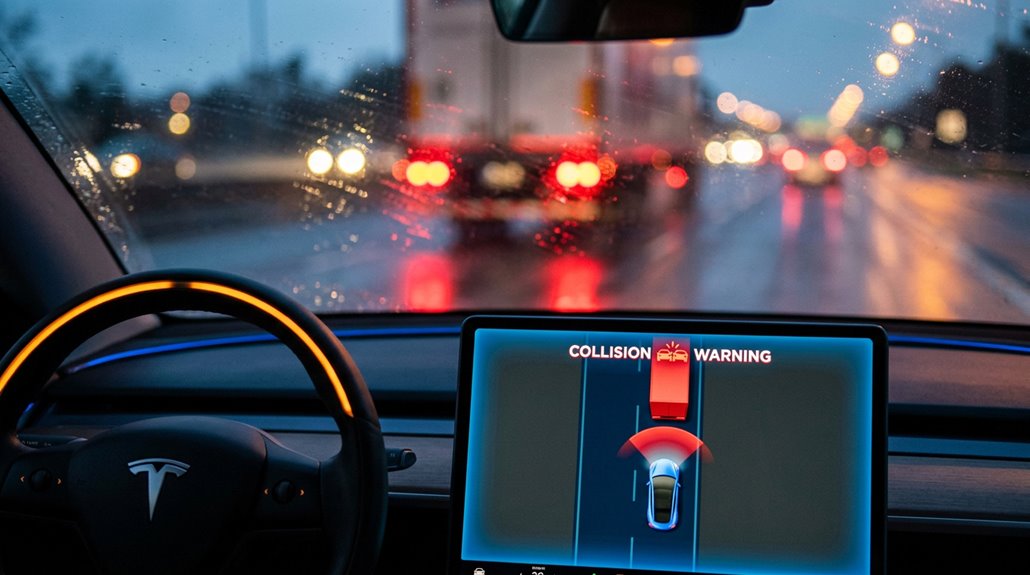
Forward Collision Warning (FCW) operates across a speed range of roughly 5 km/h to 200 km/h (3 mph to 124 mph) and monitors an approximate 160-meter (525-foot) corridor directly ahead — not to the sides, so don’t expect it to flag a car drifting into your lane.
Alert timing isn’t fixed. Your speed, closing distance, and the target vehicle’s motion all influence when the warning fires.
Higher relative speeds compress your driver window fast — sometimes uncomfortably so.
You control sensitivity: Early, Medium (default), or Late. Early buys reaction time; Late trades it for fewer nuisance alerts. Some regions also offer Off.
One important caveat — FCW won’t warn if you’re already braking. That’s where Automatic Emergency Braking takes over regardless. Tesla removed FCW from its Safety Score calculation in April 2025 following widespread driver feedback about false alerts.
Side Collision Warning and How Tesla Monitors Lateral Threats
Tesla’s Side Collision Warning monitors the lateral zones around your vehicle using the surrounding sensor suite, flagging threats from adjacent lanes during lane changes, close passes, and blind-spot intrusions before they become contact events.
When the system detects a vehicle or obstacle alongside you, it triggers a warning alert—typically a visual cue on the instrument cluster paired with an audible tone (described by owners as a mild ding rather than a jarring alarm)—prompting you to react immediately.
If you’re traveling between 30 and 85 mph on a road with visible lane markings and drift toward a detected object, Lane Assist steps in with a corrective steering input, briefly displaying a warning message on the touchscreen while guiding the car back to a safer lateral position within your lane.
Real-world incidents have demonstrated the system’s value, including a dashcam-captured near-miss on a California highway where Autopilot’s side collision warning triggered an audible chime as another vehicle merged into the Tesla’s lane without checking its blind spot.
How Side Collision Warning Works
While front-facing hazard detection gets most of the attention, lateral threats are what catch drivers off guard during lane changes and tight merges. Tesla’s Side Collision Warning uses turn signal monitoring to trigger side repeater cameras, displaying live adjacent-lane footage directly on your touchscreen. The system relies on sensor fusion technology to combine data from multiple sources into a unified picture of the vehicle’s surroundings.
Here’s what the system actually does when it detects a threat:
- A vertical red bar flashes on the camera image, signaling a vehicle entering your blind spot zone
- Blind spot alerts escalate in intensity as the detected vehicle closes distance—closer means louder, more urgent warnings
- Audible beeps fire automatically when proximity reaches an immediately dangerous threshold
This isn’t passive monitoring. It’s active situational awareness designed to bridge the gap between what you see and what’s actually alongside you.
Responding To Lateral Threat Alerts
Knowing an alert exists is half the job—knowing what to do when it fires is the other half. When those red side bars appear in your rear camera feed, immediate braking is the correct first move, not hesitation. Stop backing completely.
Visual verification follows immediately after stopping—check your mirrors and physically turn to confirm what the camera detected. The system flags direction (left bar, right bar, or both), giving you a starting point, but it won’t tell you how fast that approaching vehicle or pedestrian is moving.
Treat every alert as legitimate until your own eyes say otherwise. Camera occlusion and partial obstructions can delay detection, meaning an object may already be dangerously close before the warning appears. You’re still the final authority here.
If alerts persist without any clear obstruction present, remote diagnostics through the Tesla app can be initiated to identify whether a sensor or camera fault is contributing to false or delayed warnings.
Lane Departure Avoidance vs. the Emergency Version
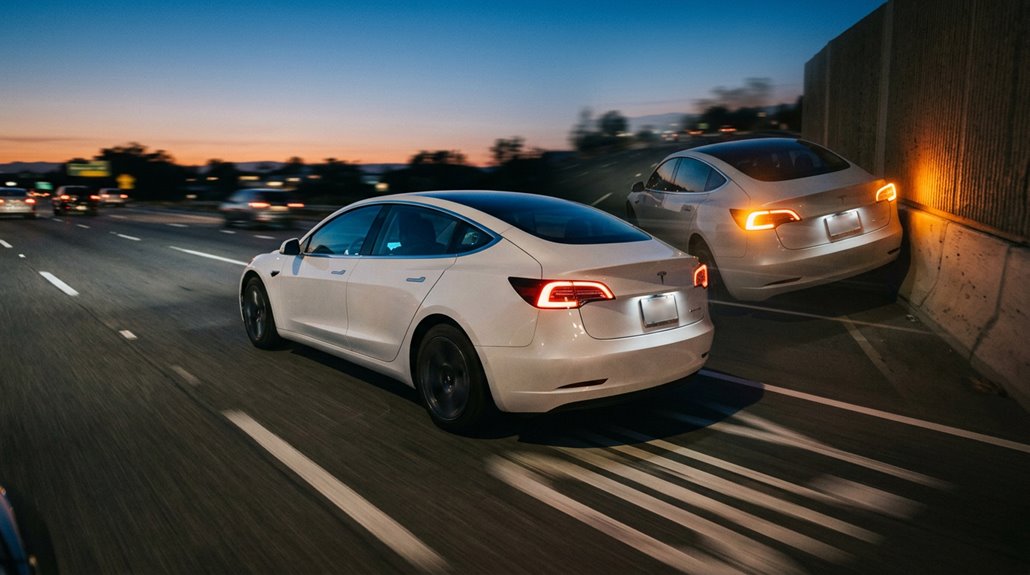
Both features share the same general premise—keeping your Tesla in its lane—but they’re built for entirely different moments on the road.
Both features aim to keep your Tesla in its lane—but they’re designed for completely different driving situations.
Lane Departure Avoidance handles routine drift through lane nudging between 40–90 mph, using warnings or gentle steering corrections you’ve manually configured.
Emergency Lane Departure Avoidance activates automatically every drive, employing emergency steering only when a genuine collision risk exists—adjacent vehicle detected, oncoming traffic crossed, or road edge approached without signaling.
Here’s what actually separates them:
- LDA corrects early; ELDA corrects when it’s almost too late
- ELDA triggers a chime, red lane-marking highlight, and touchscreen alert simultaneously
- ELDA resets to enabled each startup—you can’t permanently disable it
One’s a nudge. The other’s an intervention.
Phantom Braking and Obstacle-Aware Acceleration: What’s Actually Happening
Lane departure features handle the left-right axis—but Tesla’s driver-assist systems also police the space directly ahead, sometimes aggressively enough that owners notice a brake tap on an empty highway. That’s phantom braking: unexpected deceleration tied to perception uncertainty, not mechanical failure.
Camera limitations drive most cases. Overpasses, shadows, and glare push the neural network toward false positives—meaning it treats harmless geometry as a collision threat. When confidence thresholds drop below acceptable levels, the system brakes rather than gambles. Driver perception often conflicts sharply with what the car “sees.”
Obstacle-Aware Acceleration works differently. It restricts acceleration when nearby objects are detected at low speeds—parking lots, tight spaces—prioritizing collision avoidance over smooth progress. Cautious, yes. Occasionally frustrating, also yes.
How Autopark Works for Parallel and Perpendicular Spaces
Autopark takes over steering and speed control during parking maneuvers, handling both parallel and perpendicular spaces—but it won’t activate unless specific conditions are met first. You must drive below 8 mph (13 km/h) while the system scans for valid space geometry using cameras and (historically) ultrasonic sensors.
Sensor limitations mean cobblestone or irregular surfaces reduce detection reliability considerably.
Watch for these driver prompts before committing:
- A “P” symbol appears—finally, a car that finds parking spots better than your uncle at Thanksgiving
- A blue “START” button confirms the system has mapped a viable path
- An audible chime signals successful completion, so you actually know it worked
Edge cases like unusual lot layouts or missing curb markings can compromise performance, so stay ready to cancel anytime by braking.
Summon vs. Smart Summon: Which Feature Does What
Tesla splits remote vehicle movement into two distinct tools: basic Summon, which moves the car straight forward or backward via the app’s arrow controls (useful for extracting a Tesla from a tight garage without a gymnastics routine), and Smart Summon, which pilots around obstacles toward either a target location or your phone’s GPS position within a 65-meter proximity radius.
Smart Summon’s “Actually Smart” iteration ditches ultrasonic sensors entirely in favor of cameras, making it meaningfully more capable in open parking lots where the older sensor-dependent version would’ve given up embarrassingly fast.
Knowing which feature to trigger depends entirely on the task — Summon handles simple linear repositioning while Smart Summon takes on the messier real-world geometry of crowded parking environments.
Basic Summon Explained
Summon and Smart Summon share a name and a general concept—moving your Tesla without you behind the wheel—but they’re functionally different tools built for different jobs.
Basic Summon handles the simple stuff: straight-line, low-speed movement forward or backward. Think garage maneuvering when you need the car repositioned without climbing inside.
Here’s what defines Basic Summon:
- You control every inch by pressing and holding directional arrows in the Tesla app—release the button, the car stops
- No hands-free retrieval here; this requires constant input from you
- Ultrasonic sensors (on equipped vehicles) detect nearby obstacles during movement
It’s precise, limited, and deliberately simple.
Summon won’t steer around obstacles or find you in a parking lot. That’s Smart Summon’s job.
Smart Summon’s Added Capabilities
Smart Summon picks up where Basic Summon taps out. Instead of simple forward and reverse nudges, Smart Summon pilots full parking lot mapping — steering around obstacles, reading the environment, and stopping automatically for detected objects (including pedestrian detection). It’s genuinely more capable, not just marginally so.
Two modes define how it works. Come to Me sends the vehicle directly to your phone’s GPS location, even tracking your position as you walk. Go to Target lets you drop a map pin on a specific spot using the app’s crosshair interface.
Both modes keep speed deliberately low, stopping within roughly one meter of the target. Your phone must stay within approximately 65 meters throughout — wander too far, and the vehicle stops immediately.
Choosing the Right Feature
Both features share the same app menu and the same general premise — move the car without sitting in it — but they’re built for completely different jobs. Summon handles close range maneuvering in a straight line, nothing more. Smart Summon pilots actively, requiring continuous app supervision the entire time.
Pick the right tool:
- Use Summon when you need a simple pull-forward or pull-back in a tight garage — no route guidance required.
- Use Smart Summon when your car is parked across a lot and you want it to come to you (within 65 meters).
- Use neither on public roads — both features exist exclusively for low-speed, controlled environments like driveways and parking lots.
How Smart Summon Navigates a Parking Lot to Find You
When you’re hauling a cart full of groceries through a rainy parking lot, the last thing you want is a long walk back to your car—and that’s exactly the problem Smart Summon is built to solve.
Through camera localization, your Tesla estimates its position within the lot and maps drivable space in real time. You trigger the feature through the Tesla app, which transmits your GPS coordinates as the destination.
The car then plots a short, reactive path toward you—not a fixed route, but a continuously recalculated one. It pauses for pedestrians, threads between parked cars, and adjusts speed as obstacles appear.
User trust builds because the app shows live status updates throughout. You stay responsible for supervising the maneuver at all times.
Even with Autopilot or FSD handling parts of the drive, your attention still matters. Constantly reaching for a phone in a cupholder, seat, or center console creates unnecessary distractions when important information should be easy to see. A Tesla-Compatible Magnetic Phone Mount keeps navigation, charging apps, and essential notifications positioned within a natural line of sight, without adding clutter to Tesla’s minimalist interior.
Limitations of Smart Summon You Need to Know Before Using It
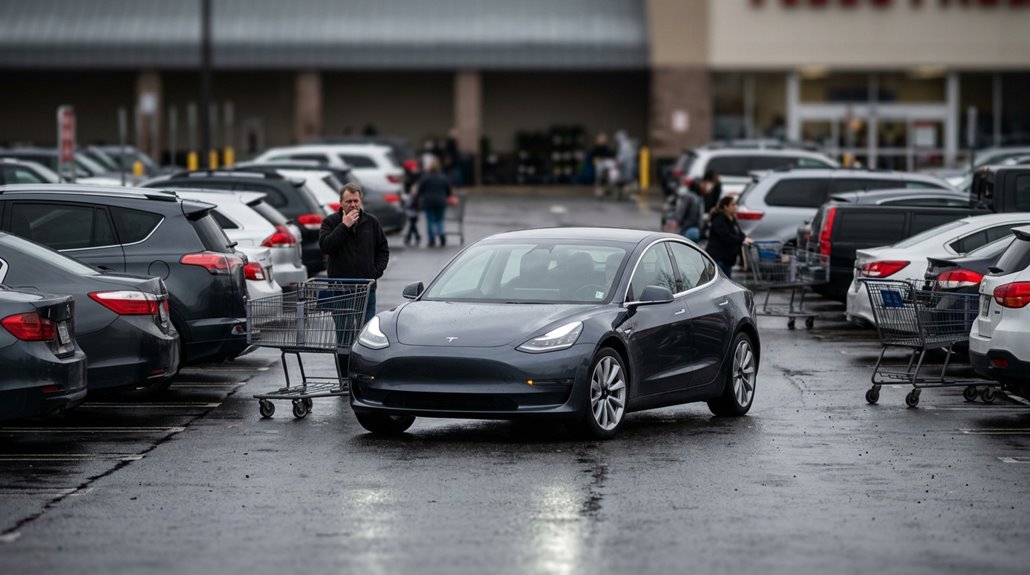
Despite how convenient Smart Summon looks in Tesla’s demo videos, the feature carries a specific set of limitations that matter a great deal before you tap that button in a real parking lot. Camera blind spots near the front fenders create real gaps in coverage. Curb detection fails on very low obstacles, and unpredictable pedestrians—especially children—introduce risk the system genuinely can’t resolve cleanly. Regulatory limits cap usable range at roughly 6 meters in UNECE markets, and around 61 meters in North America.
- NHTSA documented at least four crashes tied to Actually Smart Summon
- Narrow objects like bicycles routinely evade detection
- Tesla’s own manual admits delays exist after you release the button
Use it carefully, or don’t use it at all.
Hardware 3 vs. Hardware 4: Cameras, Processing Power, and What You Lose
If you’re comparing HW3 and HW4 hardware, the camera count alone tells an interesting story: HW3 runs eight exterior cameras while HW4 drops to seven, trading one dedicated unit for a revised front-facing dual-lens housing (where one slot reportedly sits unused in current configurations).
Processing power jumps from roughly 36 TOPS on HW3’s 14 nm-class FSD computer to approximately 50 TOPS on HW4’s newer 7 nm-class platform, giving your vehicle meaningfully faster neural network inference per frame. That extra headroom doesn’t automatically enable new features, though—software rollout schedules can leave HW4 owners waiting on functionality that the hardware is already capable of running.
Camera Count Differences
Switching from Hardware 3 to Hardware 4 isn’t just a processor swap — Tesla quietly redesigned the entire camera architecture, and the differences matter more than most owners realize. The front-facing cluster dropped from a triple-lens count to a dual-lens arrangement (one slot is effectively a dummy). Side repeaters gained larger housing differences with noticeably wider optics, sometimes sporting a reddish tint. These aren’t cosmetic tweaks.
- You’re losing that familiar HW3 triple front-facing lens cluster you never knew you’d miss
- Your side repeaters now sit in bulkier housings — meaning your old HW3 camera covers won’t fit
- That rear camera’s fish-eye effect hits harder on HW4, revealing peripheral detail HW3 simply couldn’t capture
Hardware generations aren’t interchangeable. Verify yours before buying any camera accessories.
Processing Power Compared
The camera upgrade from HW3 to HW4 doesn’t exist in isolation — it demands a proportionally larger processing backbone to actually use what those sensors capture. Five-megapixel sensors generate markedly more image bandwidth per frame than 1.2MP sensors, and that raw data volume has to go somewhere useful, fast.
HW4 answers with 16GB RAM (versus HW3’s 8GB), 256GB storage (versus 64GB), three neural network processors instead of two, and roughly 50 TOPS of compute — compared to HW3’s 36 TOPS. Clock speed climbs from 2.2GHz to 2.35GHz, and CPU cores jump from 12 to 20. That’s not incremental polish; that’s system-level rethinking. The result is genuine compute headroom for heavier perception workloads and larger future neural networks without hitting ceilings you didn’t know existed.
Feature Availability Gaps
Better cameras and a faster computer don’t automatically mean your HW3 Tesla stops working — but they do mean HW4 vehicles carry more headroom for what’s coming next.
Camera limitations on HW3 (1.2 MP versus HW4’s 5 MP sensors) create real constraints around distant object recognition, low-light parsing, and complex urban scenes.
Here’s what that gap actually costs you:
- Faded lane markings at highway speed — HW4 reads them; HW3 guesses.
- Future FSD features may launch on HW4 first, leaving HW3 owners waiting indefinitely.
- Adverse lighting conditions expose HW3’s sensor ceiling faster than most owners expect.
Upgrade pathways exist, but they’re not guaranteed or free.
Your vehicle still works — it just has less room to grow.
HW4’s Cameras: How Many, How Sharp, and What They See
Hardware 4 trimmed Tesla’s exterior camera count from 9 down to 8, and that single-camera reduction up front tells a more interesting story than the number suggests.
HW3 ran three forward cameras—wide, main, and telephoto—covering roughly 250 meters at the long end. HW4 drops that trio to two, but compensates with higher-resolution sensors capturing footage near 2896×1876 pixels (compared to HW3’s 1280×960).
You’re getting sharper pixel density where it counts most: long-range detection and low-light clarity. Side coverage stays intact via B-pillar and repeater cameras, rear cameras handle reversing and trailing traffic, and cabin monitoring watches the driver. The result is full 360-degree awareness with fewer lenses doing genuinely more work.
Autopilot and FSD can only work with what the cameras can see. A thin layer of road grime, bug residue, or windshield haze is often all it takes to trigger reduced functionality warnings or inconsistent performance.Keeping a High-Quality Microfiber Cleaning Kit for Tesla Cameras & Windshield in the car makes it easy to clear away the buildup before it starts affecting the systems you rely on most.
Why Tesla Removed Ultrasonic Sensors and What Replaced Them
When Tesla quietly dropped ultrasonic sensors (USS) from new Model 3 and Model Y builds in late 2022, the reaction was predictable: owners noticed the missing parking graphics before they noticed anything else.
The ultrasonic legacy ran deep—those sensors handled parking perception at close range, detecting curbs, posts, and walls where cameras historically struggled. Removing them cut hardware complexity and bill-of-materials costs, but it also stripped sensor redundancy temporarily.
What replaced USS matters more than what disappeared:
- Occupancy networks now interpret camera feeds to estimate nearby spatial distance
- Autopark and Summon returned gradually through software updates, not new hardware
- Software implications shifted full responsibility for near-field detection onto Tesla Vision permanently
The simpler stack demands smarter code. So far, the code is performing.
How Tesla’s Vision-Only System Detects the World Around You
Eight cameras do the heavy lifting here—placed to cover forward, rearward, side-repeater, and corner angles until every blind spot is accounted for.
Together, they deliver 360-degree coverage with visibility stretching roughly 250 meters in ideal conditions. That’s camera fidelity doing real work, not marketing copy.
Your Tesla’s FSD computer processes continuous image streams through neural networks that perform semantic segmentation, classifying every pixel as road, pedestrian, vehicle, or obstacle.
Temporal fusion stitches sequential frames together, letting the system calculate object speed and course without radar. Think of it as motion math derived purely from images.
Occlusion handling tackles partially hidden objects by tracking movement patterns across multiple frames, reconstructing what’s blocked.
No LiDAR required—just geometry, training data, and some genuinely impressive inference.
The AI4 Chip: The Computer Actually Running FSD
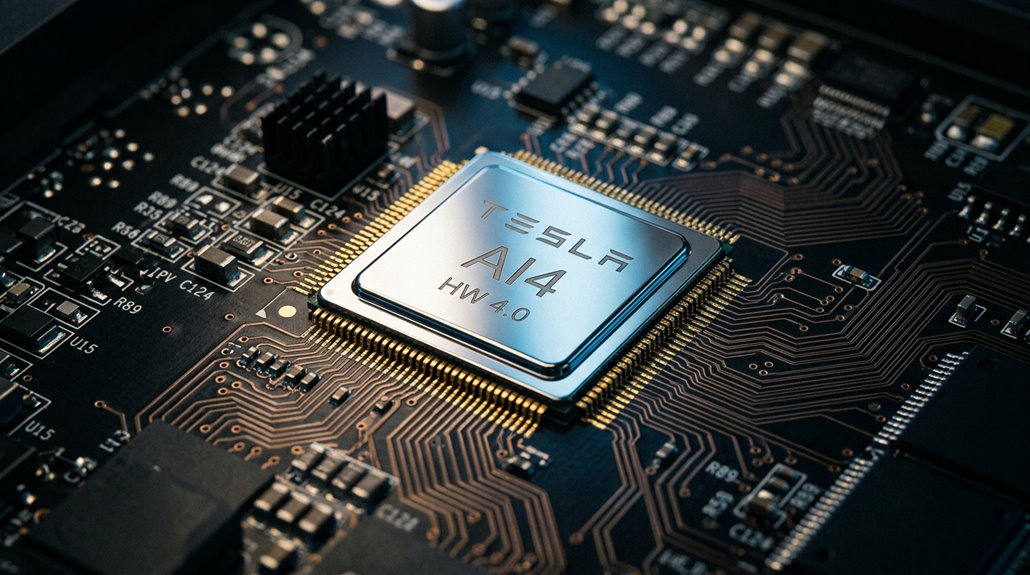
Driving every FSD decision your Tesla makes is a dual-SoC computer Tesla calls AI4—Hardware 4, the current inference platform shipping in new vehicles since 2023. Two chips run simultaneously, giving you redundant compute rather than a single point of failure. Each SoC packs custom systolic arrays purpose-built for neural-network matrix math, all on Samsung 7nm-class silicon.
Current configurations run 16GB per SoC (32GB total), with memory bandwidth feeding camera data directly into the vision optimization pipeline at impressive throughput.
This hardware genuinely matters to you because:
- Your FSD software lives or dies on this chip’s ability to process a dozen camera streams simultaneously
- Larger neural networks require more memory—AI4 already supports that expansion
- Tesla confirms AI4 handles unsupervised driving without hardware replacement
The Cabin Camera’s Role in Driver Attention Monitoring
Behind that small lens mounted above your rearview mirror sits one of FSD’s least glamorous—but genuinely consequential—safety systems: the cabin camera that monitors whether you’re actually paying attention to the road while Autopilot or FSD Supervised is active.
That unassuming lens above your mirror is quietly deciding whether you deserve to keep Autopilot running.
Tesla activated this feature through a 2021 software update, using gaze direction and head orientation to detect inattentiveness.
Catch it looking away too long, and you’ll get warnings on the center screen—or lose Autopilot entirely for that session.
Camera calibration affects detection accuracy, so lighting conditions and sunglasses can reduce how reliably it flags distraction.
Blocking the lens triggers warnings specifically during FSD beta, though Autopilot enforcement remains inconsistent.
Your privacy controls matter here too: cabin footage stays on-vehicle by default and isn’t transmitted to Tesla unless you’ve enabled data sharing.
Reading the FSD Visualization Screen While Driving
Once you switch on FSD Supervised or Autopilot, the center touchscreen (or the driver-facing instrument display in Model S and Model X) starts rendering a live interpretation of what the car’s cameras and neural networks actually perceive—lanes, nearby vehicles, pedestrians, traffic cones, and other detected objects updating in near-real-time.
Keep glance duration short. The visualization supplements your awareness; it doesn’t replace it.
- Spotting a pedestrian rendered mid-stride reminds you something fragile is close—that matters.
- Watching the blue path arc through a curve confirms the car sees what you see.
- Missing a traffic cone on-screen while it’s physically ahead is a sobering reality check.
Model S and Model X positioning supports faster peripheral cues, reducing how far your eyes travel from the road.
Which Tesla Models Support Full Self-Driving Right Now?
If you’re driving a Model 3, Model Y, Model S, Model X, or Cybertruck in North America, your vehicle sits on the current FSD (Supervised)-compatible lineup — though compatibility hinges on hardware version and regional software access, not just the nameplate on your trunk.
Hardware 3 (HW3) is the minimum threshold, with HW4 now standard on most builds from 2023 onward, meaning older Model S and Model X owners need to verify their actual hardware version before assuming eligibility.
Regional rollout adds another layer of complexity, since European and Middle Eastern markets run Tesla Vision but face local regulatory constraints that can quietly lock out features your North American counterpart uses daily.
Current FSD-Compatible Models
All four of Tesla’s mainstream passenger models—Model S, Model 3, Model X, and Model Y—support Full Self-Driving (Supervised), but that blanket statement comes with a hard asterisk: model name alone doesn’t guarantee FSD eligibility. Your vehicle’s hardware compatibility, software version, trim, model year, and regional availability all factor into whether FSD actually becomes available on your specific car.
Think of it less like a feature and more like a gate with multiple locks:
- Hardware must match the currently supported FSD software package
- Regional availability means some features won’t appear outside North America
- Upgrade paths exist, but older vehicles need compatible Autopilot hardware first
Run Tesla’s eligibility checklist before purchasing FSD—assumptions get expensive fast.
Regional Availability Differences
Where Tesla sells a car and where it actually enables FSD are two completely different maps. Market subtleties drive everything here — regulatory timelines vary by country, not continent, meaning deployment sequencing rarely follows a clean geographic logic. The U.S. and Canada lead. Australia, New Zealand, and South Korea follow. Europe moves slower, pursuing country exceptions through pathways like the Netherlands’ RDW before broader EU access releases.
| Region | FSD (Supervised) Status | Key Notes |
|---|---|---|
| U.S. & Canada | Fully Available | Primary rollout market |
| Australia, NZ, South Korea | Available | Staged early-access rollout |
| Europe | Partial/Uneven | Country-by-country approval required |
China operates separately — local data requirements and mapping services make it its own ecosystem entirely.
Hardware And Software Requirements
Not every Tesla on the road qualifies for Full Self-Driving — and the dividing line isn’t just about which model you own, it’s about what’s running under the hood. Model 3, Model Y, Model S, Model X, and Cybertruck currently support FSD (Supervised), but only when paired with compatible camera requirements and sufficient compute hardware.
Here’s what actually determines your eligibility:
- HW3 locks you out of unsupervised driving — Tesla leadership confirmed this in 2026
- Camera requirements aren’t optional — Tesla Vision’s full suite drives every perception decision
- Compute upgrades remain unscheduled — HW3-to-HW4 retrofits exist in conversation, not calendars
Software version gates features further. Having the right nameplate means nothing without the matching hardware stack underneath.
FSD Transfers and Subscriptions: What Happens When You Sell
Selling your Tesla doesn’t automatically hand over every feature you paid for, and Full Self-Driving is the clearest example of where that assumption breaks down. In a private sale, purchased FSD typically stays with the vehicle, which can meaningfully protect your resale value. Subscription limits work differently—because FSD subscription ties to your Tesla account rather than the car, account transfer during a sale effectively ends that access immediately. The new owner starts fresh.
Tesla’s official transfer program lets you move purchased FSD to a new Tesla (vehicles delivered by March 31, 2026), but your old car loses it within roughly 48 hours of your new delivery. Verify FSD status in both the vehicle and Tesla app before finalizing any transaction.
Is FSD Worth Buying? A Cost-vs-Capability Breakdown for Current Owners
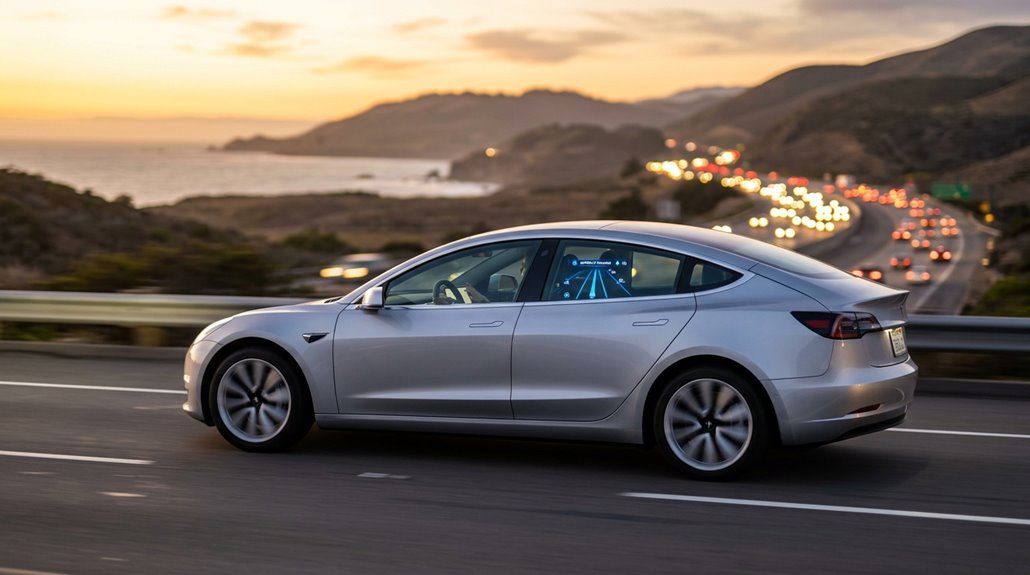
Deciding whether FSD is worth buying comes down to three variables that almost nobody calculates before tapping “Purchase”: how long you’ll own the car, which Autopilot tier you’re currently on, and whether supervised driving assistance (still the only thing FSD actually delivers today) justifies the cost against what you already have.
Your ownership horizon matters enormously here. At $99/month, the former $8,000 purchase breaks even at 81 months.
- EAP owners pay $49/month, reaching break-even in just 41 months
- Future pricing will likely rise as unsupervised capability eventually rolls out
- Buying now locks in today’s rate before Musk’s promised price increases arrive
If you’re keeping the car five-plus years, purchasing made mathematical sense.
How Feature Availability Varies by Region and Regulatory Approval
Where you live determines which Tesla driver-assistance features you can actually use — and that gap between markets is wider than most owners expect.
North America and Canada offer the broadest FSD (Supervised) access, while Europe, the UK, China, Japan, and South Korea face regulatory bottlenecks that restrict or eliminate certain capabilities entirely.
Tesla’s configurator reflects this unevenness in real time, with the Netherlands now offering only FSD-tier options on new orders while Germany still bundles Basic Autopilot at no charge — same brand, same hardware, completely different software activations depending on which side of a border you’re on.
Regional Regulatory Differences
Because Tesla’s autonomous driving stack runs on a global hardware platform, you might assume FSD Supervised rolls out everywhere at once—it doesn’t. Regulatory rollouts happen country by country, creating real feature fragmentation across identical hardware.
- The Netherlands became Europe’s first FSD-approved market under UN R-171 in April 2026—while neighboring countries still wait
- South Korea enabled FSD v14 in November 2025, but only for Model S and Model X owners (same country, different access)
- Australia and New Zealand receive Traffic Light and Stop Sign Control; many European markets currently don’t
Your car’s capabilities aren’t just determined by its hardware or software version—they’re shaped by whichever regulator approved Tesla’s application in your specific country. Same vehicle, different experience.
Market-Specific Feature Access
Regulatory approval determines what your Tesla can actually do, but it’s only half the story—the other half is how Tesla packages, prices, and enforces those features once approval lands. Regional pricing structures and regulatory approvals don’t move in sync, so your location shapes both what you get and what you pay.
| Market | Feature Tier | Pricing Model |
|---|---|---|
| United States | FSD (Supervised) | $99/month subscription |
| Netherlands | FSD (Supervised) | €99/month subscription |
| Germany | Advanced Autopilot | €3,800 one-time |
| France | Basic Autopilot | Included at no cost |
| Unsupported Regions | Restricted features | N/A |
Tesla can—and does—remotely disable features in unsupported regions, so bypassing restrictions buys you nothing permanent.
Markets Where Tesla No Longer Includes Autosteer as Standard
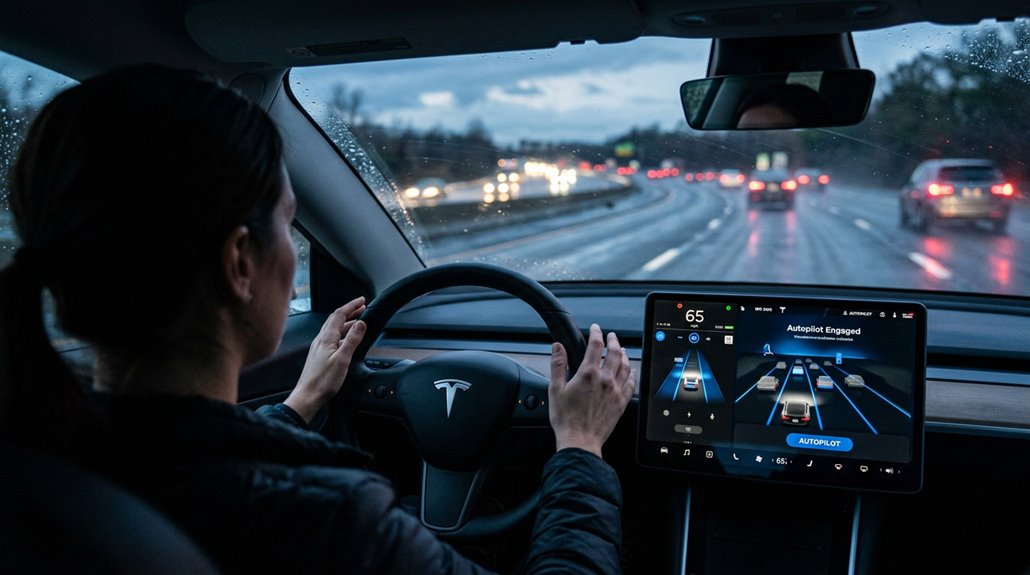
Tesla’s Autosteer removal isn’t a rumor or a distant policy shift—it’s already live in specific markets, and the list is growing. In U.S. markets, new orders since January 2026 ship with Traffic-Aware Cruise Control only—lane-centering now requires an FSD purchase.
The Dutch shift hit even harder: the Netherlands stripped Basic Autopilot entirely from its configurator in May 2026, leaving FSD Supervised as the sole driver-assistance option.
Here’s what that means for you:
- Lane-centering is now a paid feature in the U.S. and Netherlands for new buyers
- Australia still includes Autosteer in its Basic Autopilot package—for now
- Europe is trending FSD-first, with broader Basic Autopilot removal expected to follow
How to Check Which Autopilot Package Your Tesla Currently Has
You’ve got three reliable ways to figure out exactly which Autopilot package your Tesla is running: check the touchscreen, review the Tesla app, or contact Tesla Support directly.
Start with Controls > Software on the center touchscreen, where the active package (Autopilot, Improved Autopilot, or Full Self-Driving Capability) displays alongside the installed FSD software version and build-specific release notes—no guesswork required.
If you’re away from the car, the Tesla app’s vehicle page can surface package details and software information tied to your account, and if both sources leave you uncertain (say, on a used vehicle with murky ownership history), Tesla Support can confirm exactly what’s activated against your VIN.
Check Your Touchscreen
The quickest way to confirm which Autopilot package your Tesla carries is already in your hands—literally on the touchscreen. Tap the car icon in the bottom-right corner, browse to Controls, then find the Software section. Touchscreen diagnostics don’t lie—the software labels listed there reflect exactly what’s tied to your vehicle record.
Watch for these three package labels, because the wording matters more than you’d expect:
- “Autopilot” — baseline driver assistance, nothing more
- “Enhanced Autopilot” — meaningful step up with additional features
- “Full Self-Driving Capability – Included package” — permanent ownership confirmed
Subscription holders will see an expiration date instead. That single line of text separates a lifetime purchase from a recurring charge—worth reading carefully.
Review Tesla App
Pulling up the Tesla app gives you a second confirmation channel that doesn’t require you to sit in the driver’s seat. Navigate to your vehicle’s specs or summary section and look for package language specifically. Wording matters more than you’d think: “Full Self-Driving Capability” signals a purchased package, while “included package auto renews” flags an active subscription rather than permanent ownership. That distinction carries real financial weight during a used Tesla purchase.
For app verification purposes, request a seller’s screenshot and cross-reference the VIN before committing. Ownership clarity breaks down fast when app versions differ or account permissions are incomplete, so treat missing labels as inconclusive rather than definitive. Always cross-check app data against the touchscreen software screen for a complete representation.
Contact Tesla Support
When the touchscreen and app both leave you guessing, reaching out to Tesla Support directly cuts through the ambiguity faster than any menu plunge will. Have your VIN ready alongside ownership verification documents before you call or chat — support staff can pull a detailed hardware and software status report specific to your vehicle.
Here’s what Tesla Support can confirm for you:
- Whether your FSD is permanently included or quietly expiring on a subscription clock
- Your exact Autopilot hardware generation (HW3 versus AI4 matters markedly)
- Package transfer status after buying used, where support documentation proves ownership cleanly
Service centers handle the trickier cases — unclear software labels, disputed lifetime FSD access, or hardware present but features suspiciously inactive.
Activating Autopilot for the First Time
Activating Autopilot for the first time isn’t complicated, but you’ll want to nail down a few prerequisites before the system will actually cooperate.
First, confirm Autopilot is enabled under Controls > Autopilot, your software is current, and you’re on a highway with clear lane markings (lane marking checks matter here — poor visibility kills engagement instantly).
Once rolling in Drive, pull the right stalk down twice.
Newer yoke-style wheels use a double-press of the right scroll wheel instead.
You’ll hear a confirmation beep and see dashboard indicators light up, confirming Autosteer and Traffic-Aware Cruise Control are active.
That’s your first time engagement.
Keep hands on the wheel — the system assists, it doesn’t babysit itself.
How to Enable Navigate on Autopilot on a Highway Trip
Navigat on Autopilot takes Autosteer beyond lane-keeping and turns it into a route-aware highway co-pilot — handling on-ramp entry, exit positioning, and lane changes based on your active route guidance path.
Before engaging, run your pre-trip checklist: destination entered, Autosteer active, and Navigate on Autopilot toggled on inside Autopilot settings. Watch for activation prompts confirming the feature recognized a compatible controlled-access highway segment.
Here’s what changes once it’s running:
- Lane changes happen with purpose — your route decides when, not just traffic gaps
- Exit ramp positioning begins earlierthan most drivers expect, reducing last-second scrambles
- Turn signals activate automatically, signaling intent before you’ve consciously planned the move
Driver supervision stays non-negotiable. Override anytime via steering input or braking.
Adjusting Following Distance, Speed Offset, and Lane Centering
Route-aware lane changes are only part of what shapes how Autopilot actually feels behind the wheel — the more immediate variables are the ones you dial in yourself.
Following distance runs on a numbered scale (1 through 7), where each increment represents additional time before you’d reach the lead vehicle’s rear bumper — not a fixed number of car lengths. Access it under Controls > Autopilot, or via the right scroll wheel on newer software builds.
Speed offset works similarly: choose Fixed to add a flat value above any speed limit, or Percentage to scale that buffer proportionally.
Lane centering, meanwhile, reads lane markings and road edges continuously, holding your position with less intervention on well-marked roads and noticeably more effort on poorly marked ones.
The Autopilot Safety Score: What It Tracks and What It Unlocks
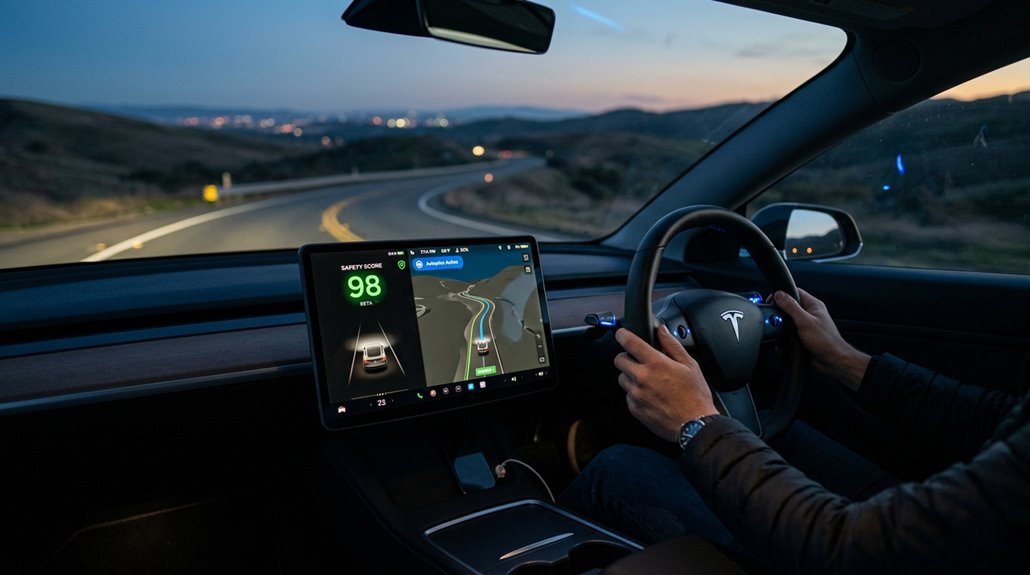
Behind every Tesla insurance quote in supported markets and behind the early FSD Beta access gates sits a single number: your Safety Score. It measures your manual driving behavior exclusively — engagement exclusions mean Autopilot, TACC, and FSD (Supervised) miles don’t count against you. Those miles actually receive a perfect 100 and blend into your final score.
Your Safety Score judges only you — every Autopilot mile earns a perfect 100 and quietly lifts your average.
Driver monitoring tracks five behaviors during unassisted driving:
- Hard braking or aggressive turning signals panic reactions your smoother self could prevent
- Unsafe following (measured only above 50 mph, capped at 64.2%) quietly exposes your highway habits
- Forward Collision Warnings (capped at 130.7 per 1,000 miles) reveal how often the car flinches before you do
Your insurance pricing ultimately reflects what happens when automation steps aside.
What OTA Updates Actually Change in Autopilot and FSD
Your Safety Score captures what you do when the car’s systems step back — but what happens when Tesla steps forward with a software push?
OTA updates split into two meaningful categories: behavioral changes and UI renames. Behavioral changes are the ones worth tracking. Tesla regularly adjusts lane selection logic, braking smoothness, and FSD’s end-to-end neural network responses — sometimes dramatically, without fanfare.
A single update can alter how your car handles an unprotected left turn.
UI renames (like “Navigate on Autopilot” becoming “Navigate on Autosteer”) feel significant but change nothing mechanical. New interfaces, like the AI4-exclusive Self-Driving app, add subscription tracking and tutorials without touching drive behavior.
Hardware matters too. HW3 and AI4 vehicles don’t always receive identical capability updates, making your computer generation the quiet gatekeeper of what actually changes.
How Tesla Uses Your Drives to Improve FSD for Everyone
Every time you drive a Tesla with data sharing enabled, you’re feeding a distributed training pipeline that spans millions of vehicles worldwide.
Fleet learning converts ordinary commutes into labeled training assets — filtered, classified, and prioritized by mechanized systems detecting disengagement events and edge cases.
Edge case replay lets Tesla reintroduce rare real-world failures directly into training, something no controlled test fleet can replicate at scale.
Your drives genuinely matter because:
- Phantom braking decreases as your frustrating stops become training corrections
- Unprotected left turns improve through your hesitation moments becoming decision data
- Rare scenarios get solved faster through collective exposure
Synthetic expansion expands this further by generating scenario variations without additional collection.
Privacy implications exist — short camera clips transmit to Tesla — but anonymization measures apply throughout.
How FSD Has Changed From Version 10 to Version 12
From version 10 to version 12, FSD underwent one of the most aggressive structural overhauls in consumer autonomy software history — not a refinement cycle, but a fundamental rethinking of how the system drives. Version 10 still showed rule-based neural behavior: hesitant unprotected lefts, steering corrections that felt mechanical, and separated highway-city system designs.
Version 10.12 tightened planning evolution considerably, improving occlusion detection for crossing vehicles and honing creeping behavior at intersections. Visualization detail sharpened too — parked cars, open doors, and cyclists rendered with actual situational accuracy.
Version 11 collapsed the two-stack framework into one unified system. Then version 12 arrived and replaced rule-patching entirely with end-to-end neural driving — smoother, more human, and genuinely harder to distinguish from an attentive driver.
Phantom Braking, Missed Exits, and Other Autopilot Complaints Explained
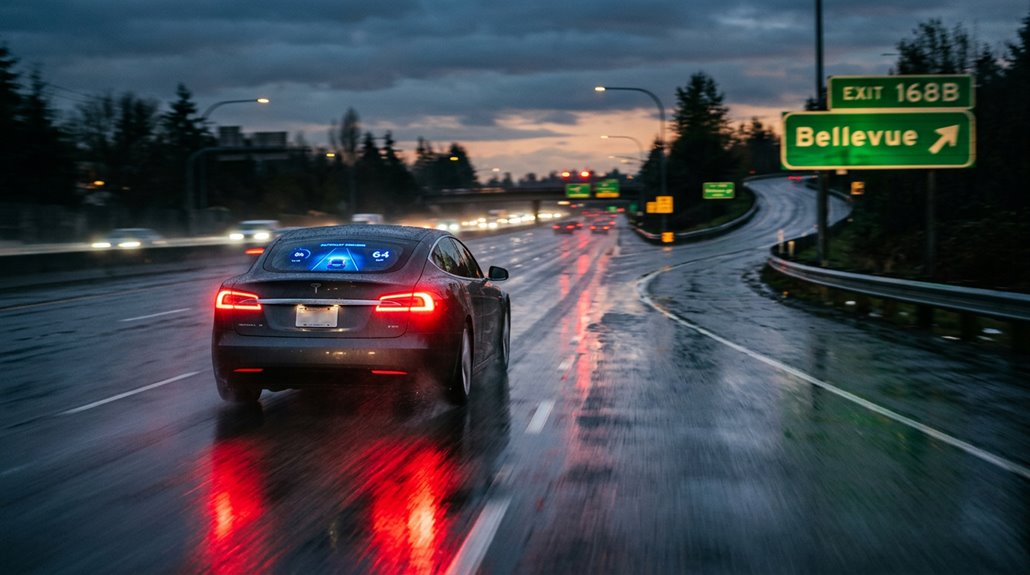
Autopilot isn’t perfect — and Tesla owners have been vocal about exactly where it falls short. Phantom braking, where the system decelerates without an actual hazard, remains one of the most-reported concerns. NHTSA received 354 complaints over roughly nine months, prompting an investigation covering approximately 416,000 Model 3 and Model Y vehicles. The root cause isn’t one thing — it’s perception tuning, decision logic, and environmental misreading working against you simultaneously.
Phantom braking isn’t a glitch — it’s perception failures, flawed logic, and environmental misreading colliding at once.
Missed exits and route guidance reliability issues add further frustration:
- Late lane changes near exits feel abrupt and can create dangerous situations in dense traffic
- Unclear lane markings genuinely confuse the system, causing hesitation or drift
- Even straightforward routes sometimes demand your intervention
Understanding these limitations helps you use Autopilot more safely, not avoid it entirely.
How to Report an Autopilot Issue to Tesla
Knowing where Autopilot falls short is only half the job — the other half is putting that information somewhere it can actually do something. Your primary tool is in-vehicle feedback. Say “Report,” “Feedback,” or “Bug report” followed by a brief description — Tesla’s systems immediately snapshot your location, diagnostics, and touchscreen state. Keep it specific: identify the function involved, whether lane keeping, braking, or disengagement.
For safety escalation beyond Tesla, NHTSA’s vehicle safety portal accepts direct submissions, which matters if the issue involves ADAS engagement during a collision. Repeated problems at the same road segment deserve exact location details, either for Tesla support or a service visit. Combining both channels builds the strongest investigative record.
How Autopilot Handles Rain, Snow, and Glare
Weather is where Tesla’s camera-only system design gets stress-tested in real time. Rain handling depends entirely on lens cleanliness and lane-marking visibility — heavy spray triggers “Speed Limited for Visibility” responses, not system failures. Snow limitations run deeper because painted road cues simply disappear under accumulation, forcing disengagements that no software update fully solves.
Three conditions that genuinely challenge Tesla Vision:
- Heavy rain washes out lane markings, making your Tesla feel suddenly timid on roads you drive confidently every day
- Snow-covered roads strip away every visual reference the system relies on, leaving cameras effectively guessing
- Direct sun glare can wash out contrast instantly, cutting FSD function mid-maneuver without warning
Highways outperform surface streets in all three scenarios.
How Tesla FSD Performs at Night vs. Daytime
Rain and low visibility are just one side of Tesla Vision’s environmental challenge — the other shows up every evening when the sun goes down.
Night confidence holds up surprisingly well on clearly marked urban streets, where FSD 14.2.2.3 and 14.3.2 both completed complex city routes — unprotected left turns included — without intervention.
Daytime still edges ahead marginally; testers recorded arrivals roughly 3–5 seconds earlier in daylight on identical residential runs. The gap isn’t failure — it’s lane hesitation before committing to ambiguous intersections in low-ambient-light conditions.
Matrix headlights changed the calculus considerably, keeping high beams active while dimming individual pixels around oncoming vehicles, eliminating glare complaints.
Dark, unmarked residential streets remain the genuine stress test where route guidance regressions appear even when lane control stays solid.
