
Most people hand over their keys and assume Valet Mode handles the rest. It doesn’t—not entirely. Yes, it caps speed, dulls acceleration, and shields your personal data from curious eyes. But there are gaps in what it actually protects, and those gaps matter more than Tesla wants you to think. Before you activate it and walk away feeling secure, you need to know exactly where its limits end and your vulnerability begins.
What Tesla Valet Mode Restricts and Why It Exists
Tesla’s Valet Mode exists for one practical reason: you need to hand your car to a stranger without handing over your entire digital life. It’s a purposefully limited driving environment built around real privacy tradeoffs — your saved addresses, contacts, and personal schedules disappear from the touchscreen entirely.
Performance gets reined in too. Speed caps at 70 mph, acceleration drops roughly 50% (think Chill Mode territory), and Autopilot goes dark. The frunk and glove box lock automatically, though the trunk stays accessible — a deliberate distinction worth noting.
Wi-Fi, Bluetooth, voice commands, and HomeLink all get disabled. Your paired key list becomes invisible. Driver profiles? Gone. The Sentry Mode icon disables immediately the moment Valet Mode is switched on.
There aren’t significant legal considerations baked into the feature itself, but handing a vehicle to any temporary driver still carries owner liability in most jurisdictions — Valet Mode limits exposure, not responsibility. It’s a smart layer of protection, not a legal shield. Because Tesla’s drivetrain has roughly 20 moving parts compared to around 2,000 in a traditional combustion engine, the mechanical simplicity means fewer systems for a valet to inadvertently stress — though the software restrictions do the heavy lifting here.
Valet Mode is useful for limiting access and reducing what others can do with your Tesla, but it doesn’t protect you from what actually gets recorded—or lost—if storage fills up or footage gets overwritten at the wrong moment. That’s why many owners upgrade their recording capacity with a Tesla dash cam and Sentry Mode storage solution so important clips from valet parking, service visits, or unexpected incidents are consistently saved when they matter most.
What Tesla Valet Mode Locks, Limits, and Leaves Alone
Valet Mode doesn’t operate on a simple on/off switch for every feature — it carves your Tesla’s capabilities into three distinct categories: things it locks down completely, things it throttles to a controlled level, and things it leaves entirely untouched.
On the locked side, you’re looking at the frunk, the glove box, your home address, saved destinations, contacts, Wi‑Fi, Bluetooth, and voice commands — practically every vector a nosy valet could exploit to learn where you live or what you own. Your VIN and vehicle identification details stored within the touchscreen’s Controls menu remain inaccessible to anyone operating the car under Valet Mode restrictions.
What stays accessible is more practical than personal: the trunk remains reachable (useful for luggage), core driving functions work normally within the imposed limits, and Sentry Mode continues operating independently unless you’ve adjusted it separately. The speed limit feature can be configured to restrict the valet to a maximum driving speed of less than 70 mph.
Valet Mode can limit speed, access, and certain vehicle features, but it can’t stop a misplaced or exposed key card from creating unnecessary risk when handing your Tesla over to someone else. Keeping your key card protected and shielded in a Tesla RFID-blocking wallet sleeve helps prevent accidental scans, damage, or unintended access while your vehicle is being parked or handled by a valet.
Locked and Limited Features
When you hand over the keys (or rather, the key card) to a valet, Tesla’s Valet Mode doesn’t just slow things down — it locks down a carefully tiered set of features across performance, privacy, storage, and connected services.
Think of it as a curated restriction profile built for battery preservation and passenger comfort without surrendering control entirely. Tesla’s software-controlled architecture means these restrictions are enforced through feature gating software switches rather than any physical modification to the vehicle’s hardware.
Here’s what gets restricted:
- Top speed caps at 70 mph, with acceleration reduced up to 50%
- Autopilot and Smart Summon are fully disabled
- Glove box and frunk lock automatically, protecting documents and valuables
- Personal data — contacts, calendar, and saved addresses — disappears from the screen
- Bluetooth and Wi-Fi connectivity may be disabled, cutting off connected services entirely
Your Home and Work locations are also hidden from the navigation system, ensuring a valet cannot trace or access your saved destinations.
What Stays Accessible
Knowing what gets locked is only half the equation — the other half is knowing what’s still live and working while your car’s in someone else’s hands.
Valet Mode doesn’t brick your Tesla. The entry controls stay functional, meaning a key card still grants drive access. Steering, braking, and gear selection all respond normally. The trunk opens without issue (frunk stays sealed, though).
Your touchscreen remains active for core operation — just stripped of personal data. The accessibility features that matter for basic parking remain intact: controlled acceleration (capped at Chill level), 70 mph top speed, and standard manual driving.
Wi-Fi, Bluetooth, voice commands, and Autopilot are cut entirely. Tesla’s Autopilot system, which spans three tiers — Basic Autopilot, Enhanced Autopilot, and FSD Supervised — remains fully disabled regardless of which package is active on the vehicle. The valet gets exactly what they need — nothing more. In-car entertainment apps like Theater and Toy Box are also blocked, keeping the valet focused on the task at hand.
How Tesla Valet Mode Protects Your Personal Data
Handing your Tesla over to a stranger shouldn’t mean handing over your life — and that’s precisely what Valet Mode addresses.
Handing your Tesla to a stranger shouldn’t mean handing over your privacy along with the keys.
It systematically cuts off access to your most sensitive information, functioning like a digital bouncer that knows exactly what stays private.
No data encryption bypass, no biometric privacy loopholes, no cloud sync exposure — the system locks things down cleanly.
Here’s what Valet Mode actively protects:
- Contacts and calendar entries are hidden from the center display entirely
- Home, work, and saved addresses won’t appear during routing
- Wi-Fi and Bluetooth are disabled, cutting off third party apps from connecting
- Voice commands are deactivated, blocking indirect access to personal data
- The glove box and frunk lock automatically, securing physical belongings
Your PIN controls entry and exit from this mode, meaning no one tampers with these restrictions without your permission. Keeping your vehicle’s personal data protection intact also complements how Tesla evaluates each warranty claim individually, meaning unauthorized access or tampering is traceable on a repair-by-repair basis.
How to Set Up and Cancel Tesla Valet Mode
Setting up Tesla Valet Mode is straightforward, but you’ll need the car in Park before the touchscreen or app will let you touch anything—no exceptions.
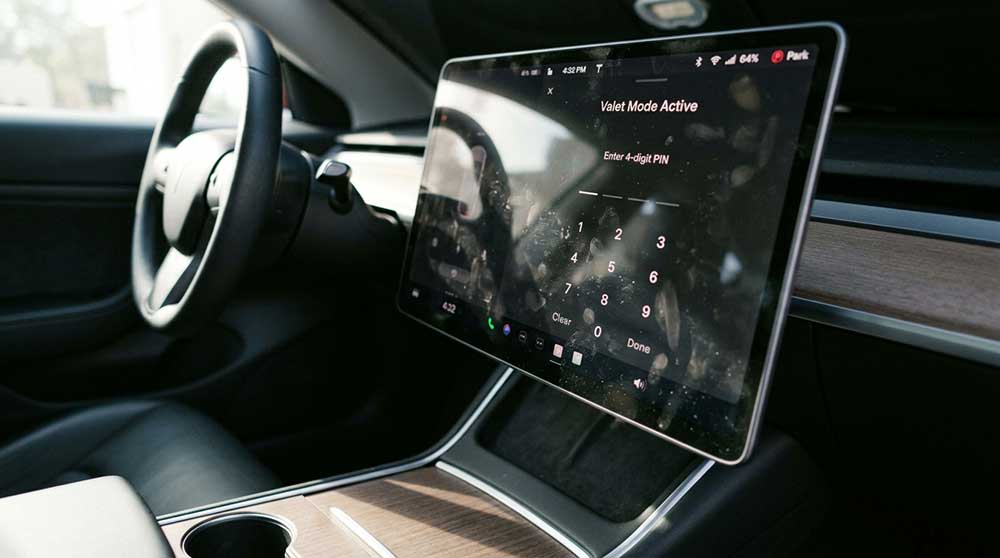
From the touchscreen, tap the driver profile icon in Controls, select Valet Mode, and create your 4-digit PIN on first activation (the app skips the PIN entry entirely since your Tesla Account login already handles verification).
When you’re ready to cancel, either re-enter that PIN on the touchscreen or toggle the feature off in the app, which also doubles as your recovery tool if you’ve somehow managed to forget a four-digit number. Valet Mode settings, like most Tesla vehicle preferences, are managed through the same software-first touchscreen interface that consolidates climate control, navigation, and other functions traditionally handled by physical controls.
Enabling Valet Mode Steps
Once you’ve decided to hand the keys over (or, more accurately, hand over the key card — it’s 2024), getting Valet Mode active on your Tesla takes less than a minute from either the touchscreen or the mobile app.
Touchscreen walkthrough:
- Park first — the system won’t cooperate otherwise.
- Tap your driver profile icon or the Controls menu.
- Select “Valet Mode” from the security-related options.
- Enter your 4-digit PIN to confirm activation.
- Verify the Valet Mode indicator appears on-screen.
App activation runs the same logic remotely:
- Open the Tesla app and steer to Security & Drivers.
- Toggle Valet Mode on — done.
Both methods lock in restrictions immediately, including the 70 mph speed cap and reduced acceleration. While Valet Mode is active, the driver also cannot access charging settings, which matters given that Tesla recommends stopping charge at 80% to protect long-term battery health.
Creating Your Valet PIN
The PIN is what actually controls Valet Mode — not the key card, not the app toggle, not a strongly worded note in the glovebox.
Tesla requires a custom 4-digit code to both activate and deactivate the mode, making it the single access barrier between normal operation and restricted valet access.
Choose something memorable to you but genuinely difficult to guess (birthdays and “1234” disqualify themselves immediately). Think of memory techniques like associating the digits with a personal reference only you’d recognize.
Store it in a trusted PIN manager if your memory is unreliable — forgetting it means contacting Tesla support for account verification before regaining full vehicle access.
Treat this PIN like a vehicle security setting, not an afterthought, because that’s exactly what it is.
Many configuration and security decisions, including those made at the Tesla configuration screen, carry direct financial and practical consequences that are worth understanding before finalizing any vehicle setup.
Canceling Valet Mode
Your PIN is set, Valet Mode is active, and the valet has (hopefully) treated your Model 3 like a museum piece rather than a test track — now you need to get your car back to normal. You have two solid options.
Via touchscreen:
- Park the vehicle, open Controls, then Safety & Security
- Select Valet Mode and enter your PIN to deactivate
Via Tesla app (remote disabling):
- Access Security and Drivers
- Toggle Valet Mode off — no PIN required remotely
Once canceled, speed limits, Autopilot restrictions, glove box access, and your saved driver profile all restore immediately. Managing this through the Tesla app mirrors how owners handle other vehicle functions remotely, like cabin preconditioning before entering the car in the morning.
Forgot your PIN? Ownership verification through Tesla Support is your recovery path — just have your account credentials and proof of ownership ready.
What Happens If You Forget Your Tesla Valet Mode PIN?
Forgetting your Valet Mode PIN isn’t the end of the world, but it does mean you’re locked out of full vehicle controls until you sort it out — and no, there’s no magic default code hiding in the glovebox. Valet Mode stays active until you authenticate properly, which carries real privacy implications and legal considerations if the car remains in someone else’s hands longer than intended.
| Recovery Method | What You Need |
|---|---|
| Touchscreen reset | Tesla account credentials |
| Tesla mobile app | Logged-in app access |
| New PIN creation | Account verification first |
| Tesla Support | Identity confirmation |
Your fastest path is entering your Tesla credentials directly on the touchscreen or through the app to reset and create a fresh 4-digit PIN. Incorrect guesses won’t disable Valet Mode — the system simply holds its ground. If standard methods fail, contact Tesla Support directly. Tesla’s broader ecosystem also includes features like battery preconditioning via route guidance, which warms the pack before a Supercharger arrival, reflecting the same philosophy of intelligent, behind-the-scenes vehicle management that underlies Valet Mode’s design.
Tesla Valet Mode Limitations Owners Should Know
Valet Mode does its job well, but knowing exactly where its guardrails sit will save you from an awkward moment in a parking garage or a confused valet attendant who can’t figure out why the glove box won’t open. Grasp its temporary transferability as intentional — you’re lending limited control, not full ownership. Good valet etiquette means briefing the attendant beforehand.
Valet Mode lends limited control — not full ownership. Brief your attendant before handing over the keys.
- Speed caps at 70 mph with roughly 50% reduced acceleration, comparable to Chill Mode
- Autopilot and FSD are fully disabled — no assisted driving whatsoever
- Glove box and frunk lock automatically, while the rear trunk stays accessible
- Wi-Fi, Bluetooth, and voice commands are off, preventing new device pairing
- Navigation hides your home, work, and saved addresses to protect personal location data
These aren’t bugs — they’re deliberate limits Tesla built to protect you during temporary handoffs.
Frequently Asked Questions
Can a Valet Driver Tell When Tesla Valet Mode Is Active?
Yes, a valet driver can absolutely tell. Your dashboard indicator quietly whispers “Valet Mode,” and your smartphone notification keeps you looped in while reduced speed and locked settings paint the full scene.
Does Tesla Valet Mode Affect Charging or Battery Settings?
Valet Mode doesn’t touch your battery limits or charging access. You’ll charge normally while keeping your personal settings locked down — it’s only designed to restrict driving performance and privacy features.
Will Valet Mode Disable In-Car Music or Media Streaming?
No, Valet Mode won’t silence your DJ dreams—your valet’s still blasting your playlists. It doesn’t disable Bluetooth streaming or impose route-finding restrictions on media. Manually hide audio sources separately if you want real control.
Can Valet Mode Be Activated Remotely Before Arriving at the Valet?
Yes, you can use remote activation through the Tesla app before you arrive, enabling scheduled enabling of Valet Mode while your car’s parked, securing speed limits and privacy settings ahead of handing over your keys.
Does Valet Mode Record or Log the Valet Driver’s Behavior?
Valet Mode won’t vigilantly verify behavioral logging of your driver. It doesn’t record or surveil through dedicated telemetry privacy tools — you’ll only get indirect activity glimpses via your Tesla app’s standard vehicle status updates.