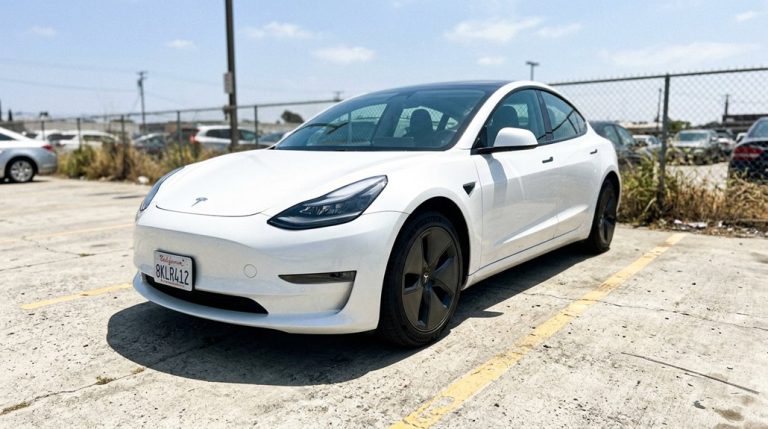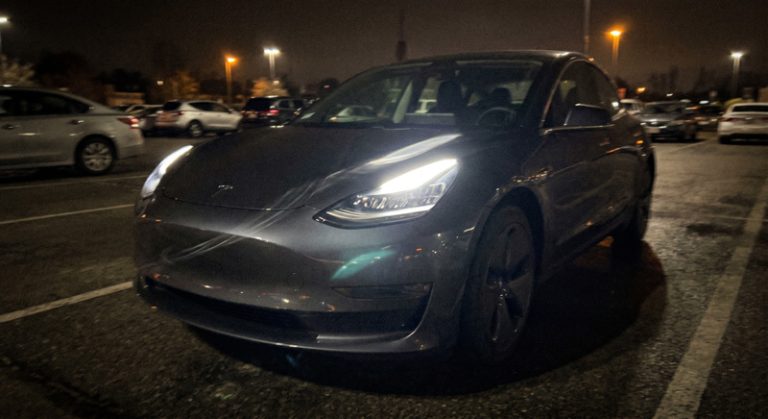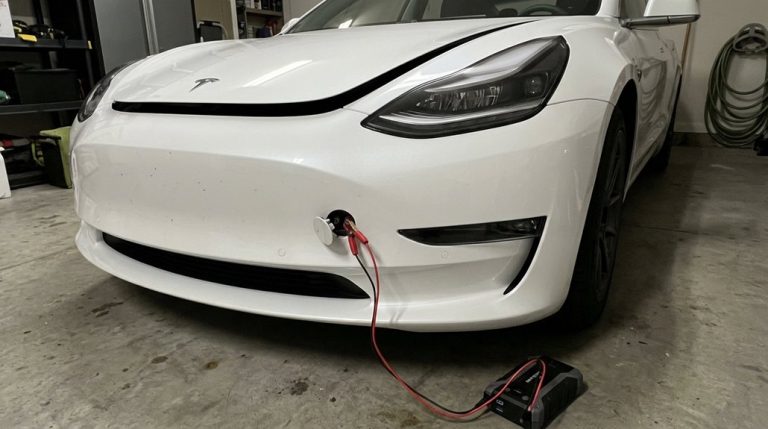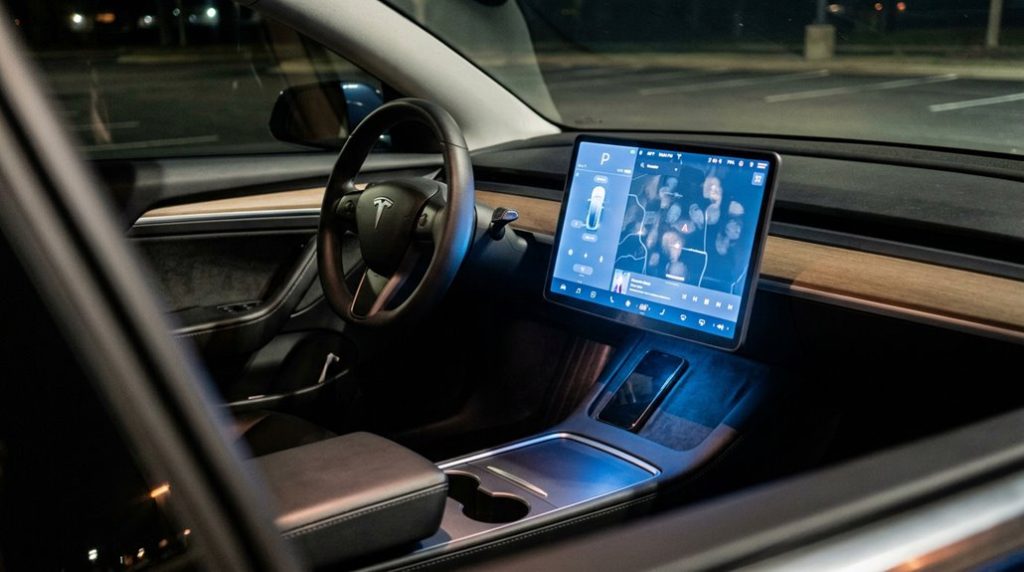

Your Tesla Model 3 costs $40,000—and it shipped with anti-theft features that do almost nothing until you manually configure them. Security Alarm, Sentry Mode, PIN to Drive, tilt and intrusion sensors: all present, all partially useless by default. One missed toggle is all it takes to leave a gap a thief can walk right through. Most owners never realize this until it’s too late.
How the Model 3 Security Alarm Arms and Triggers
Once you enable the Security Alarm through Controls > Safety & Security > Security Alarm, the system doesn’t arm immediately — it waits a full minute after you exit, and only completes arming after the doors lock and no recognized key or authenticated phone remains in range.
That built-in alarm latency isn’t a flaw; it’s deliberate, giving you time to retrieve forgotten items without triggering a false alarm.
Once armed, the entry sensors monitor every locked door and trunk.
Unauthorized access — meaning any locked entry without a recognized key or authenticated phone nearby — triggers the alarm instantly.
Headlights and turn signals flash, and if your Model 3 is equipped with a battery-backed siren, that fires too.
The system responds specifically to keyless intrusion attempts, so a locked vehicle with no authenticated credentials nearby represents the normal armed state.
Tesla’s over-the-air software updates also allow the manufacturer to selectively enable or disable security-related features post-production, meaning alarm behavior can be refined or patched without requiring a service visit.
Even with advanced Tesla security features, most theft attempts rely on speed and opportunity—if someone can get inside and move fast, your car is at risk. That’s why visible protection still matters more than most owners think. Add an extra layer of protection with a steering wheel lock anti-theft deterrent before your Model 3 becomes an easy target in a crowded parking lot.
How Tilt and Intrusion Sensors Catch Tow Attempts
Either trigger sounds the horn, flashes the lights, and pushes an alert to your phone — which matters most when a tow truck driver is hoping you won’t notice your car rolling onto a flatbed at 2 a.m. If you’re taking your Model 3 through a car wash or transporting it on a ferry, disable these sensors from the control menu to avoid false trigger alerts.
Because Tesla pushes changes to safety-related menus through over-the-air updates, it’s worth confirming you’re on the latest build by navigating to Controls > Software, where your current software version is displayed alongside any pending updates.
Activating Tilt/Intrusion Detection
Worth noting: regional availability affects whether you’ll even see this toggle. Market and trim variations mean some vehicles need a firmware update before the option appears—so if it’s missing, check your menu first rather than assuming your car lacks the hardware entirely.
Tesla confirms intrusion sensing hardware ships on new vehicles, but activation doesn’t always follow automatically. Verify your specific configuration in-vehicle before relying on it. The control path runs through Controls, Settings, Safety & Security to reach the Tilt/Intrusion toggle directly. Unlike traditional vehicles, Tesla delivers remote software updates overnight via Wi-Fi that can enable or refine security features without requiring a service visit.
Triggering Alerts During Towing
When a tow truck hooks up to your Model 3, the tilt sensor doesn’t wait for someone to open a door—it reads the vehicle’s angle and movement directly, triggering the alarm before the car leaves the spot.
Tow monitoring works because the system distinguishes jerky, abnormal movement from routine parking vibration. Here’s what activates during a tow attempt:
- Tilt detection flags the vehicle being raised or angled
- Intrusion sensing catches cabin disturbance if windows are compromised
- Wheel sensors register unexpected motion while the car remains locked
Once triggered, the alarm sounds, headlights pulse, and your mobile app receives an immediate notification. Sentry Mode also saves footage to your USB drive—giving you timestamped evidence before the thief reaches the highway. Tesla’s onboard camera array continuously feeds visual data into the vehicle’s systems, meaning recorded footage captures surrounding vehicles and environmental context alongside the theft event itself. For the most reliable footage capture during these events, a high-quality SSD stored in the glove box is recommended over basic USB sticks, which can fail under heavy recording demands.
Tesla Model 3 theft rarely looks dramatic—it’s often just a silent tow or an unauthorized drive that you only realize too late. Built-in security helps, but it won’t always tell you where your car is once it’s moved. Add real-time protection with a GPS tracker for Tesla so you can see exactly where your vehicle is at all times, not after it’s already gone.
How to Configure Phone Key and Passive Entry Security Settings
Before your Tesla Model 3 recognizes your phone as a key, a few prerequisites need to be in place—skip one, and the pairing process simply won’t work. You’ll need the Tesla app installed, Bluetooth enabled system-wide, and app permissions configured for both Bluetooth and location access. Background app access matters too; without it, passive entry becomes unreliable.
Once those foundations are set, stand near your vehicle and initiate pairing through the app’s main screen. Follow prompts on both the app and the touchscreen simultaneously—they work in tandem, not independently. Confirmation appears in the app when pairing succeeds, and the touchscreen’s key list updates accordingly.
Managing keys stays straightforward through Security & Drivers on the touchscreen. You can rename, add, or delete phone keys as needed. Deleting a key requires scanning an authenticated backup card on the card reader (location varies by build date), keeping access control deliberate rather than accidental. The Tesla app also allows you to manage cabin preconditioning settings, giving you climate control over your vehicle before you even reach the door. Up to three phone keys can connect simultaneously, making it practical to share access across multiple drivers without compromising individual control.
How to Enable PIN to Drive on the Model 3 Touchscreen
Adding PIN to Drive turns your Model 3 into a vehicle that won’t budge without a four-digit code—useful when someone has physical access to the car but shouldn’t be driving it.
Here’s how to activate it:
- Open Controls using the lower-left car icon on the touchscreen.
- Tap Safety & Security, then select PIN to Drive and toggle it on.
- Enter your chosen four-digit code when prompted—this becomes your PIN memory checkpoint every time you press the brake before moving.
Once active, the system requests your code before Drive or Reverse engages.
Simple, effective, and quietly stubborn about it.
For emergency override situations—say, a forgotten PIN—tap the login link directly on the PIN screen and authenticate with your Tesla account credentials.
You can also return to Controls > Safety & Security > PIN to Drive to disable or reconfigure the feature entirely.
This same Tesla account also connects you to the official Tesla app, where you can locate the nearest Supercharger station along any route you plan to drive.
How to Set Up Sentry Mode on Your Model 3
| Feature | Requirement | Location |
|---|---|---|
| Sentry Mode | Dashcam enabled | Controls > Safety & Security |
| Footage Storage | USB drive formatted FAT32 | Glove box or center console |
| Live Camera | Mobile app enabled | Controls > Safety > Sentry Mode |
When threats are detected, the parking lights pulse, the alarm sounds, and your phone receives an alert. You can also activate Sentry via the Tesla app or voice commands like “Keep Tesla safe.” Accessing the live camera feed remotely requires an active Premium Connectivity subscription, which is priced at $9.99/month or $99/year and cannot be substituted with a Wi-Fi workaround.
How to Get Sentry Mode Alerts on Your Phone
Once Sentry Mode is active and your Tesla app is linked to the correct account, your phone receives a push notification whenever the system detects a clear threat — think aggressive shaking, a hard impact, or movement consistent with towing. Minor activity, like someone walking past, won’t trigger anything.
Three conditions must align for alerts to work reliably:
- Sentry Mode must be enabled (it’s off by default)
- Your Model 3 must be locked and in Park
- Your Tesla app must be installed with notifications permitted
Worth knowing: app previews — video or image snapshots tied to the alert — are currently reported as iPhone and iPad exclusive, with Android support unconfirmed. Notification delays are also real; Tesla’s native alerts are threshold-based, meaning significant events get flagged while borderline recordings sit silently in your video history, reviewable later through the vehicle’s interface. The Model 3’s onboard battery management system continuously monitors pack conditions and communicates with charging infrastructure in real time, the same underlying BMS logic that governs how the vehicle interprets and responds to external electronic signals.
Frequently Asked Questions
Can PIN to Drive Still Be Bypassed if Someone Steals Your Key Card?
Like a lock needing two keys, stealing your key card won’t bypass PIN to Drive alone. You’d still need your 4-digit PIN. Only rare firmware exploits or software bugs could potentially defeat this protection.
Does Sentry Mode Remain Active When the Vehicle’s Battery Is Critically Low?
No, Sentry Mode doesn’t stay active when your battery drops below 20%. Tesla’s system prioritizes battery conservation over continued surveillance, reflecting safety tradeoffs designed to guarantee you’ve still got enough charge to drive.
Which Tesla Model 3 Trim Levels Support the Tilt and Intrusion Feature?
Not every trim locks you in—U.S. Model 3s lack confirmed Standard Range+ compatibility across trims, as hardware varies. EU Model 3s broadly include it. You’ll need to verify your specific trim’s equipment before relying on it.
Can Multiple Drivers Each Set Their Own Individual PIN to Drive Code?
No, you can’t set individual PIN to Drive codes across multiple profiles. Tesla treats it as one shared vehicle-wide PIN, so everyone driving shared vehicles uses the same four-digit code.
Does Enabling PIN to Drive Affect Tesla’s Valet Mode or Service Access?
Enabling PIN to Drive does affect valet restrictions — Valet Mode temporarily overrides your driving PIN. However, it doesn’t impact service accessibility, as Tesla’s service workflow relies on ownership and key-based authorization instead.