
Your car key is already obsolete — you just don’t know it yet. Tesla owners are driving every day without ever touching a physical key, using nothing more than a phone, a Bluetooth connection, and the right app setup. But here’s the catch: getting it wrong means standing outside your car with a dead phone and zero options. The difference between a seamless keyless experience and a complete nightmare comes down to a few critical details most guides gloss over.
What App, Bluetooth, and Account You Need for Tesla Keyless Driving
Driving a Tesla without a physical key starts with three requirements: the Tesla mobile app, an active Tesla account, and Bluetooth enabled on your phone.
The app runs on iPhone (iOS 17.0 or later) and Android, so check your device compatibility before assuming you’re covered.
The Tesla app supports iPhone (iOS 17.0 or later) and Android—verify your device meets requirements before proceeding.
Your Tesla account credentials—email and password—serve as the authorization layer for every keyless command. Think of it as a digital handshake between you and the vehicle.
Some actions prompt a second password confirmation before the car responds, which is exactly the kind of friction you want in Security Settings protecting a moving vehicle.
Bluetooth must be active in your phone’s global settings and App Permissions for the app to communicate with the vehicle at close range.
However, Bluetooth alone isn’t enough—your phone and the Tesla both need cellular service or Wi-Fi active for remote commands to reach Tesla’s servers successfully. When keyless driving is activated through the app, a two-minute timeout window is granted before the vehicle requires additional authentication.
Your vehicle’s software version directly affects app feature availability, and you can confirm the current build number by navigating to Controls then Software on the touchscreen.
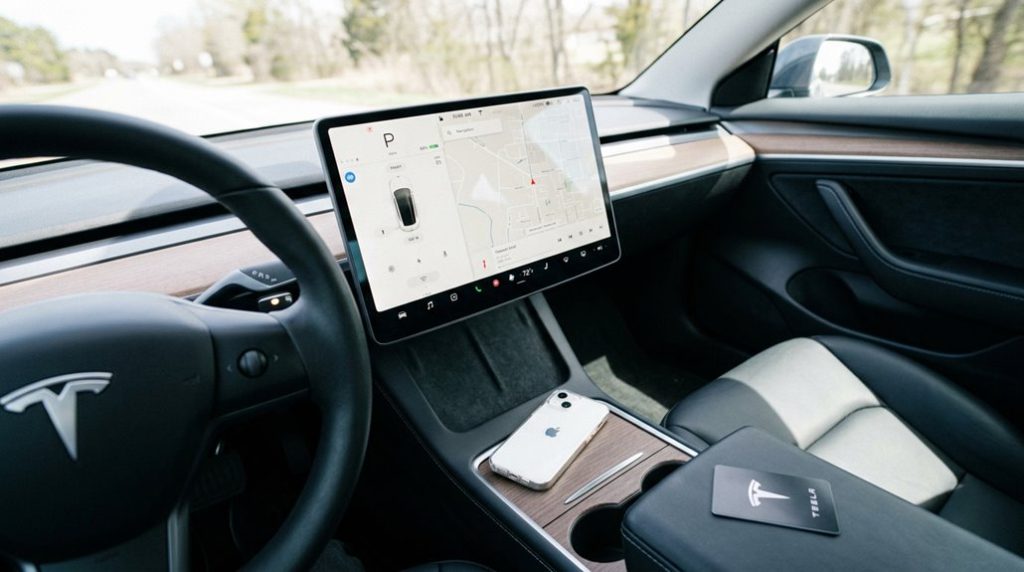
Leaving your master key card sliding around loose in your cup holder is a recipe for a scratched centre console and a lost key. Don’t risk getting stranded because your only backup slipped between the seats—lock down your peace of mind with this rugged carbon fibre shield here and track it instantly with an integrated AirTag slot before it vanishes.
How to Set Up Your Phone as a Tesla Key
Once you’ve got the app installed, your account credentials ready, and Bluetooth switched on, setting up your phone as a key is the logical next move.
Start inside or near your Tesla, open the app, select your vehicle, then tap Set Up Phone Key****. Follow the prompts on both the app and the vehicle’s touchscreen — yes, both screens matter here.
A few privacy considerations worth noting: location access should be set to Always Allow, and Bluetooth permission must be granted at the operating system level, not just inside the app. Remove any third-party Tesla apps beforehand, as they can interfere with pairing.
Also check your phone’s battery optimization settings. Aggressive battery optimization kills background app activity, which quietly breaks phone key functionality without warning.
Once pairing completes, the app confirms success and your phone appears in the vehicle’s key list — fully authorized and ready to go. Up to three phone keys can connect simultaneously, making it practical for households with multiple drivers sharing the same vehicle. Tesla’s remote software updates can also affect phone key behavior, so it’s worth re-verifying connectivity after a vehicle update installs overnight.
How to Start a Keyless Drive in Your Tesla
Starting a keyless drive requires the Tesla mobile app, an active internet connection, and a vehicle that’s already unlatched — because the app’s start sequence doesn’t handle door access for you. Unlock the doors first, then follow the activation sequence below.
The Tesla app starts your drive — but unlocking the doors first is on you.
- Open the Tesla app, use the Controls menu, then tap Start
- Enter your Tesla account password when prompted (a basic safety check against unauthorized use)
- Press the brake pedal and select Drive once the session activates
- Complete everything within the two-minute window — the car reverts to inactive if you don’t
- Note that parking ends the session entirely, requiring a full restart
One legal consideration worth knowing: if the session can’t be cancelled once initiated, you’re committed — so only start it when you’re ready to drive. Your phone needs cellular or Wi-Fi connectivity throughout, since Tesla’s servers stay in the loop. For the phone to function as a key, Bluetooth and pairing between your phone and Tesla must be enabled beforehand.
Tesla’s Supercharger network spans 45,000+ plugs globally, meaning keyless app access becomes especially practical on long-distance trips where you may be managing charging stops without a physical key on hand.
How to Drive Your Tesla If Your Phone Key Stops Working
When your Tesla’s phone key stops working mid-trip or before you even get in, the fix depends on what you still have access to.
Your key card is the fastest recovery option — tap it to the driver’s door pillar, then place it on the center console to start driving. Always keep spare keycard in your wallet; it’s the one backup that requires zero connectivity. The app start button works too, but only if both your phone and vehicle have active data. Tesla vehicles rely on continuous data connectivity to process remote commands sent through the app, meaning a weak or absent signal on either end will prevent the start button from functioning.
| Situation | Recovery Method |
|---|---|
| Phone Bluetooth off | Enable Bluetooth, reopen app |
| No connectivity | Use physical key card |
| App not communicating | Restart phone, retry pairing |
| Key card unavailable | App start button (needs data) |
| Persistent failure | Remove phone from Keys, re-pair |
Re-pairing requires standing near the car and tapping Set Up next to Phone Key inside the Tesla app. After re-pairing successfully, a phone key highlighted in white confirms the key is active and recognized by the vehicle.
Your Tesla key card is the backup plan you hope you never need—until your phone dies, won’t connect, or gets left behind. Keep that critical backup protected and easy to find with this RFID-safe Tesla key card holder so you’re not scrambling for access when every second counts.
Frequently Asked Questions
Can You Use an Apple Watch as a Key for Your Tesla?
Yes, you can use your Apple Watch as a Digital Key for your Tesla! Simply set up the Wrist Unlock feature through the Tesla app. Note that it uses Bluetooth, not NFC Pairing, for seamless vehicle access.
How Far Away Does a Tesla Key Fob Unlock Your Car?
Your Tesla’s key fob opens your car within a six-foot range estimate using Passive Entry. Keep in mind that signal interference from nearby radio equipment can reduce that distance, so you’ll want to adjust your fob’s position if needed.
Does Keyless Driving Work Without an Internet Connection Available?
Over 90% of Tesla’s remote features rely on server connectivity. You can’t use app-based keyless driving without internet, though Bluetooth limitations aside, offline functionality still lets you drive using a key card or Bluetooth phone key nearby.
How Do You Remove a Paired Key From Your Tesla’s Settings?
To Remove Pairing, go to Controls > Locks, tap the trash icon beside the key, then confirm with an authenticated key card. This revokes access without a Factory Reset, and the key disappears from your list.
Does Putting Your Tesla in Park End the Keyless Driving Session?
Like hitting pause on a song, parking doesn’t fully end your session—but you’ll need to reauthorize before driving again. The safety timeout and park duration mean you can’t simply shift back into drive.