
Tesla’s navigation voice isn’t a feature you choose — it’s a feature that chooses you. Most owners don’t realize they’re stuck with a default they never picked, and the workaround sits buried under regional language variants and hidden voice packs that Tesla never bothered to advertise. The process is counterintuitive, slightly tedious, and completely worth it. Here’s exactly what you need to change it.
How to Change the Voice on Tesla Navigation
Many Tesla owners expect a voice selection menu when they first go looking for route guidance voice settings — but that option doesn’t exist. Tesla’s built-in navigation system offers one voice per language, not a customizable library. Voice personalization, as most drivers imagine it, simply isn’t part of the native interface.
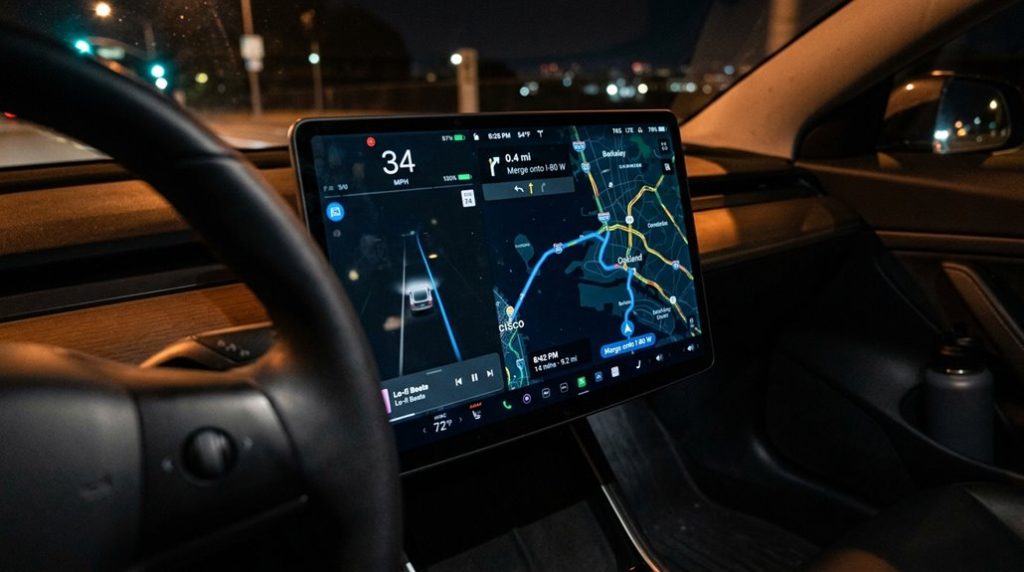
Your practical workaround is changing the language itself. Go to Controls → Display → Voice Guidance Language****, then select from options like British English, French, German, or Spanish. Each selection changes the accent and spoken style of your route prompts. It’s a narrow solution, but it’s the one Tesla provides.
For broader voice choices, third party integration is your best bet — apps like Waze or Google Maps on your phone offer genuine voice libraries. However, those options won’t appear inside Tesla’s built-in guidance interface. Tesla’s in-vehicle route guidance system can also help you locate nearby Supercharger stations, which are concentrated along highway corridors and urban centers across a network of 45,000+ stations globally. You’re working within Tesla’s system, so you work within Tesla’s rules. All content and guidance found through outside sources remains subject to intellectual property rights, so use third party apps within their stated terms.
Tesla navigation works well on its own, but the moment you start relying on phone apps for traffic updates or alternate routes, a loose device sliding around the cabin becomes a distraction you don’t need. Keep everything in view and fully charged by using a Tesla-compatible wireless fast charging phone mount so your navigation setup stays stable, visible, and ready for every turn without interruption.
Download a Regional Voice Pack Over Wi-Fi
After you switch your voice guidance language in Controls → Display, the car may need to pull down a matching regional voice pack — and that download happens over Wi-Fi, not cellular. Tesla’s route guidance infrastructure treats voice packs like map data: large assets requiring stable connectivity.
| Scenario | What to Do |
|---|---|
| Home network available | Connect via standard Wi-Fi; download runs automatically |
| Away from home | Use Hotspot setup on your phone as a Wi-Fi source |
| Download stalled | Start Wi-Fi troubleshooting — check signal strength, reboot head unit |
Once connected, the vehicle fetches the correct pack based on your language variant (British English versus American English, for instance) without requiring manual file selection. You won’t see a progress bar until a larger update bundles in. Controls → Software shows your current routing data version, confirming whether the regional pack landed successfully. For large downloads like voice packs, Tesla recommends prioritizing your home router placement and avoiding guest networks and band-steering configurations that can interrupt the transfer mid-session. If you need the download to complete sooner, parking overnight at a Tesla service center gives you access to their Wi-Fi network and allows the car to finish pulling the asset without interruption.
Voice commands in a Tesla are only as good as what the cabin mic actually picks up, and wind or road noise can quietly turn simple navigation requests into frustrating misreads. Improve how reliably your car understands you by adding a Tesla cabin microphone wind noise reducer so your voice commands stay clear, accurate, and frustration-free even at higher speeds.
Adjust Tesla Navigation Voice Volume or Mute It Completely
Tesla processes natural phrasing, so you won’t need to memorize exact syntax. Clean and direct. The touchscreen also serves as a central control hub for audio and navigation settings, meaning voice guidance adjustments can be made with just a few taps if you prefer a visual approach.
You also have the option to disable voice guidance entirely if you prefer silence during your route.
Stop Tesla Navigation Voice From Interrupting Your Music
Tesla route guidance doesn’t just guide you—it occasionally bulldozes your playlist mid-chorus. Voice muting solves this without touching your overall volume settings, which is the smarter approach to audio prioritization.
Tesla route guidance doesn’t just direct you—it hijacks your music mid-song without warning.
Press your steering wheel’s voice command button and say “mute voice routing.” That’s your primary phrase. If Tesla doesn’t respond correctly, try “mute voice guidance” as the backup. Both suppress turn-by-turn prompts specifically, leaving your music untouched and uninterrupted.
Avoid saying “stop voice”—that targets media playback instead of routing guidance, which is the opposite of what you want.
Because routing prompts run as a separate audio function, muting guidance prevents the system from overriding your entertainment audio entirely. When you’re ready for spoken directions again, say “unmute voice routing” or “unmute voice guidance” to restore them. Both commands work mid-trip, making real-time adjustments practical without screen interaction while driving. Tesla’s navigation system relies on camera-based lane detection and GPS together, meaning voice guidance is tied to active route data that continues running in the background even when muted. Using voice control rather than manually navigating system menus is the safer option when adjusting navigation settings on the road.
Tesla Navigation Voice Silent? Check These Settings First
Muting guidance on purpose is one thing—but sometimes Tesla’s route voice goes quiet without any help from you. Before assuming a hardware fault, run through these checks first.
- Check mute status — Tap the speaker icon in the guidance panel. An “X” symbol means it’s muted. Tap it again to restore guidance.
- Inspect volume levels — Your steering wheel buttons control overall audio, including prompts. If everything sits near zero, guidance voice disappears with it.
- Check language mismatch — A mismatched guidance language setting can produce silence or unintelligible output. Confirm your language under Controls > Display.
- Access in-trip settings — Open the three-dot menu inside the guidance tile, then tap Settings to adjust voice controls without interrupting your route.
Most silent-voice situations trace back to accidental muting or a software setting buried one menu deeper than expected. It’s also worth noting that many display and audio issues on Tesla vehicles are resolved automatically through over-the-air updates, eliminating the need for a service visit entirely.
Frequently Asked Questions
Can I Use Google Maps or Waze Voice Through Tesla Speakers Instead?
Yes, you can hear Google Maps or Waze voice through Tesla’s speakers via Bluetooth. These third-party apps route audio from your phone, though Android Auto isn’t natively supported on Tesla vehicles.
Will a Factory Reset Give My Tesla a Different Navigation Voice?
A factory reset might give you a different guidance voice by clearing voice caching, but it’s not guaranteed. You’ll only get a new voice if Tesla’s already rolled out an updated version to your vehicle.
Does Muting Navigation Voice Also Disable Tesla’s Voice Command System?
Muting route guidance voice doesn’t disable Tesla’s voice command system. It only silences turn-by-turn prompts—that’s the mute effect. You’ll still have full command fallback, since both features operate as completely separate systems.
Can I Select a Male or Female Voice on Tesla Navigation?
Like a vending machine with one flavor, Tesla doesn’t offer voice options or a gender toggle. You’re stuck with the pre-set guidance voice for your language — no male or female selection exists in the built-in system.
Does Changing Navigation Language Require an Internet Connection to Work?
You don’t need an internet connection to change it. Tesla handles the switch using local files stored onboard, making it an offline setup. Wi-Fi helps only if your car needs to download a new language pack.